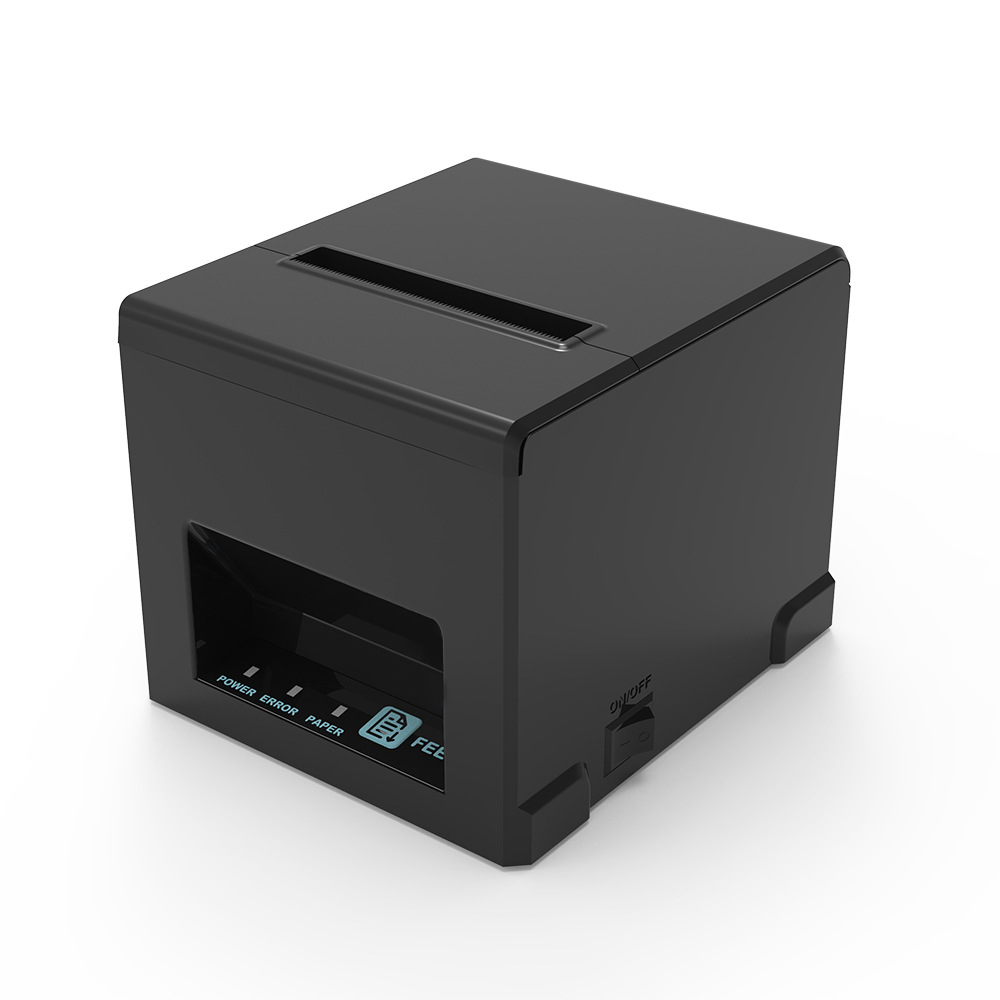
UR-3390
80mm receipt printing with an automatic cutter for checkout and billing.
View UR-3390 specifications
START WITH YOUR PRINTING TASK
From a checkout receipt to an embedded ticket printer, every printing task starts with a working environment. Explore six application scenarios, understand the printing approach and find suitable Uright Tech products for your setup.
Explore the scenariosExplore the setting first, then the printing workflow. Each scenario connects a practical requirement to a printing solution and a short list of suitable products.
01 / APPLICATION
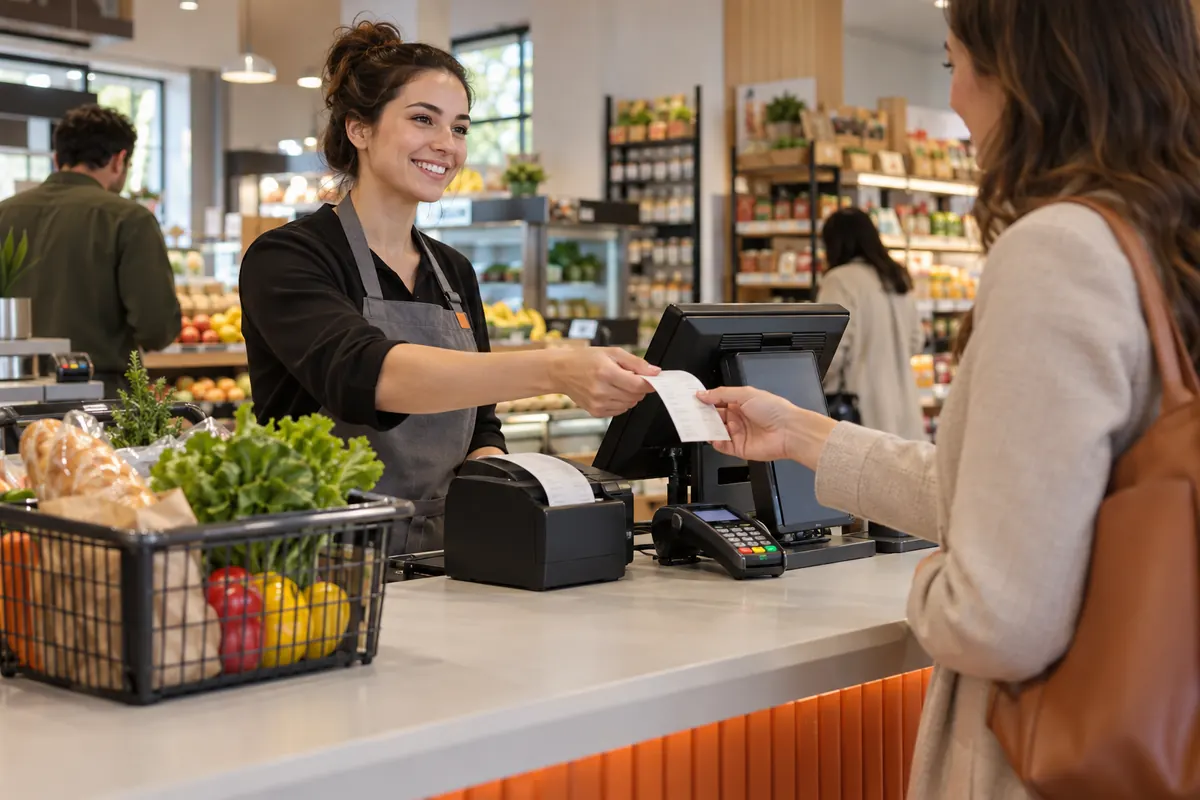
Clear receipts help customers check their purchases and give staff a record of each transaction. For retail counters and service desks, a desktop thermal receipt printer connects the checkout workflow to a printed sales receipt or billing slip.
A busy counter needs readable receipts without taking up unnecessary space. The print layout, paper roll and connection must fit the existing checkout system.
PRINTING APPROACH
Use a desktop direct thermal receipt printer connected to the POS system. Choose 58mm or 80mm paper around the receipt layout and required printable area. An automatic cutter can separate each completed receipt, while suitable roll capacity and easy loading help staff manage daily printing. The POS software generates the text, barcode or QR-code layout and sends it through the configured interface.
SUITABLE PRODUCTS TO EXPLORE
Browse receipt printers80mm receipt printing with an automatic cutter for checkout and billing.
View UR-3390 specifications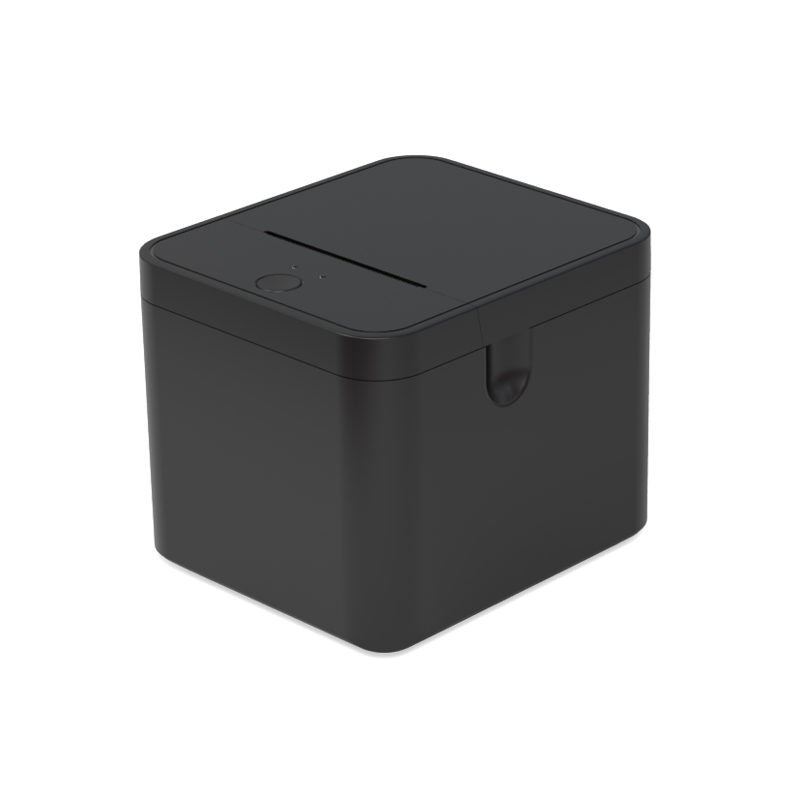
Discuss your workflow, layout and equipment requirements.
02 / APPLICATION
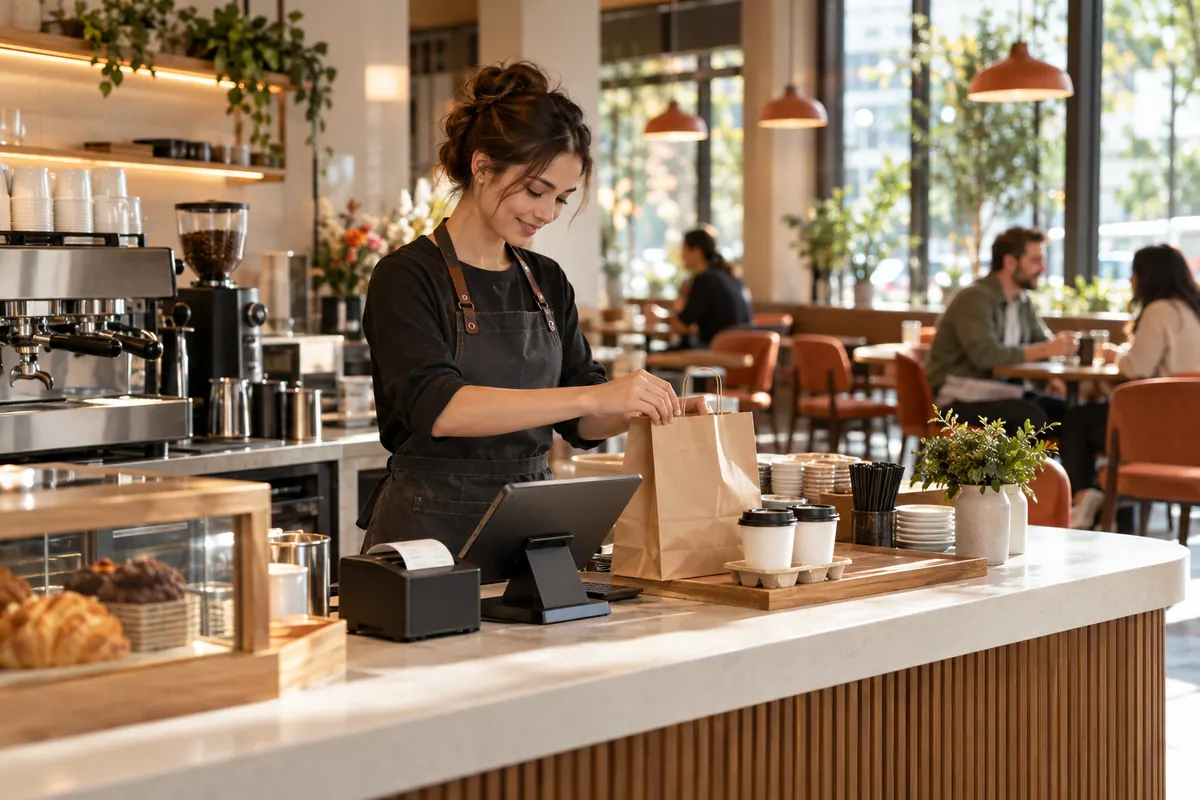
Restaurants, cafés and hotel service desks need printed orders, itemized bills and transaction receipts. Thermal receipt printing can support front-counter and service-area workflows through a compatible ordering or billing system.
Staff need printed bills and order information that match the ordering workflow. Counter location, connection setup and access for changing paper rolls affect the choice of printer.
PRINTING APPROACH
Connect a desktop thermal receipt printer to compatible ordering or billing software for customer bills and order slips. Choose a paper width that accommodates item names, quantities and totals, and an installation position that staff can access for collecting output and loading paper. For front-counter and service-area use, consider automatic cutting and the required network or USB setup. Share actual heat and moisture conditions if the installation is near food preparation.
SUITABLE PRODUCTS TO EXPLORE
Browse receipt printers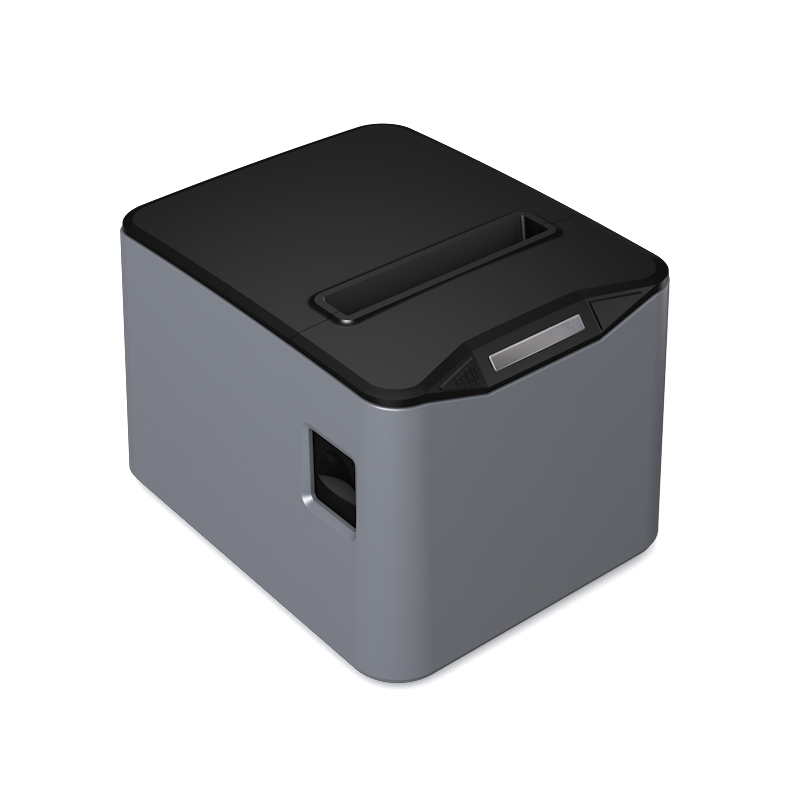
80mm receipt printing with desktop and wall-mount installation options.
View UR-3370 specificationsDiscuss your workflow, layout and equipment requirements.
03 / APPLICATION
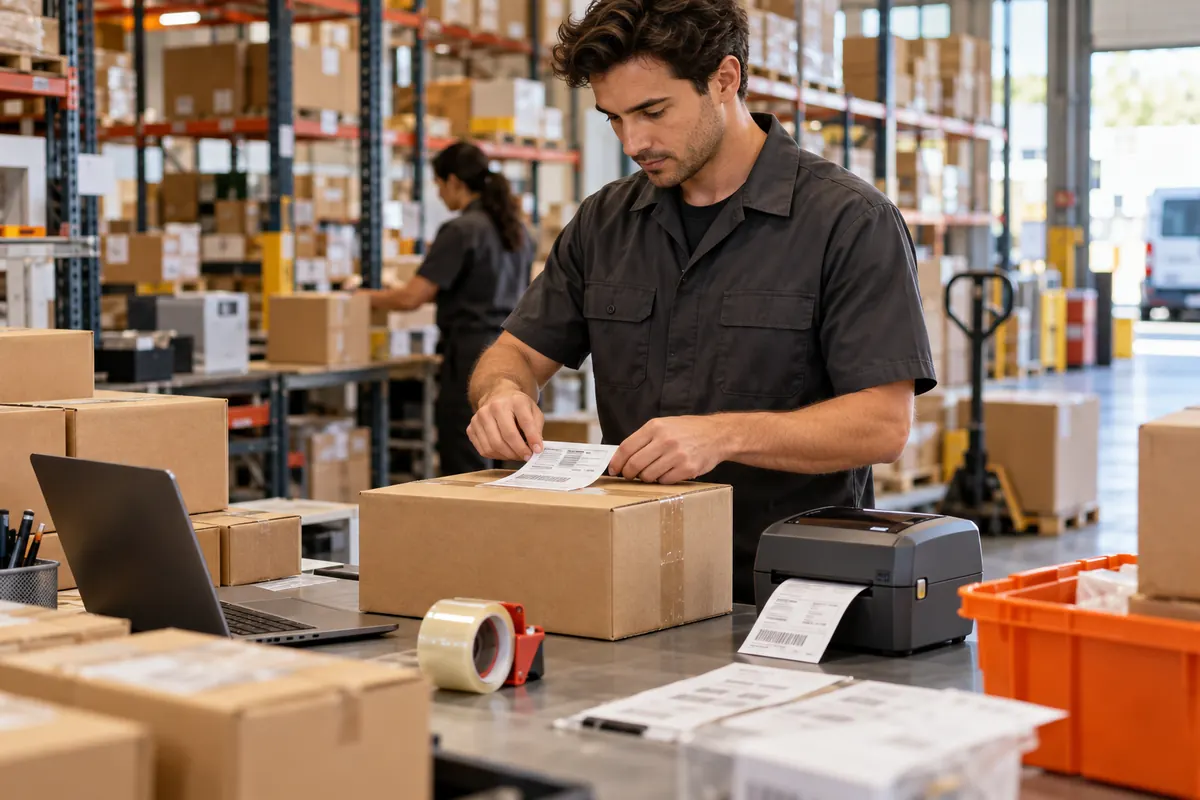
Shipping and warehouse workflows use labels to identify parcels, products and storage locations. A thermal label printer should be selected around the actual label dimensions, barcode layout and software used to generate the print job.
A parcel label must fit the package and keep its barcode within the printable area. The printer, label stock and shipping software need to use the same dimensions and media settings.
PRINTING APPROACH
Use a direct thermal label printer with media sized for the dispatch layout. Configure label dimensions and gap or black-mark detection to match the stock, then generate the barcode and address layout in compatible shipping or warehouse software. A 4 inch printer is a starting point for wider parcel labels. Select smaller-label or mobile equipment when the layout and working location call for it.
SUITABLE PRODUCTS TO EXPLORE
Browse label printers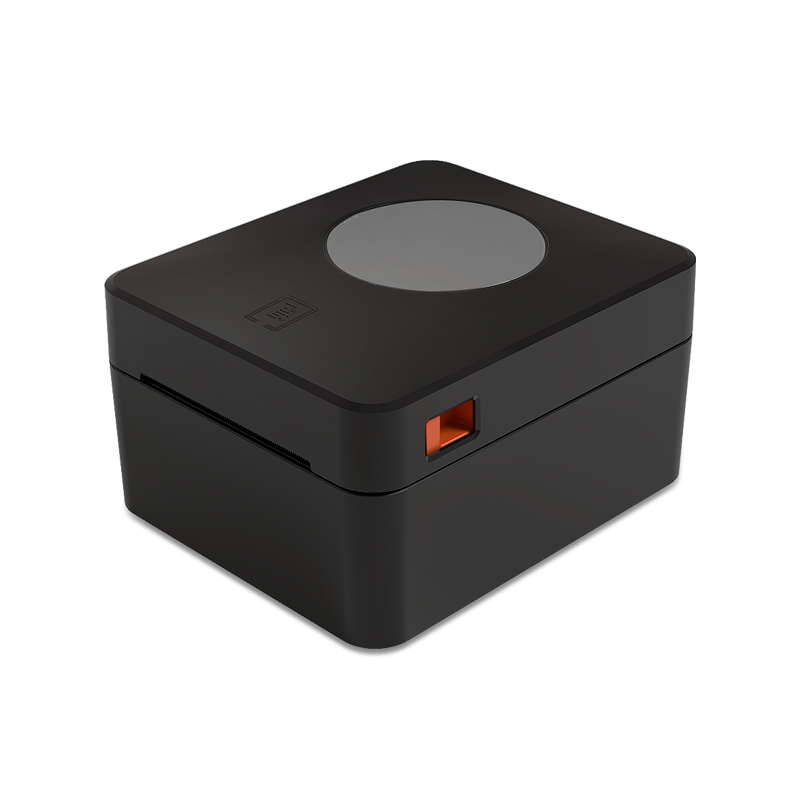
4 inch direct thermal label printing for identification and dispatch.
View UR-4250 specifications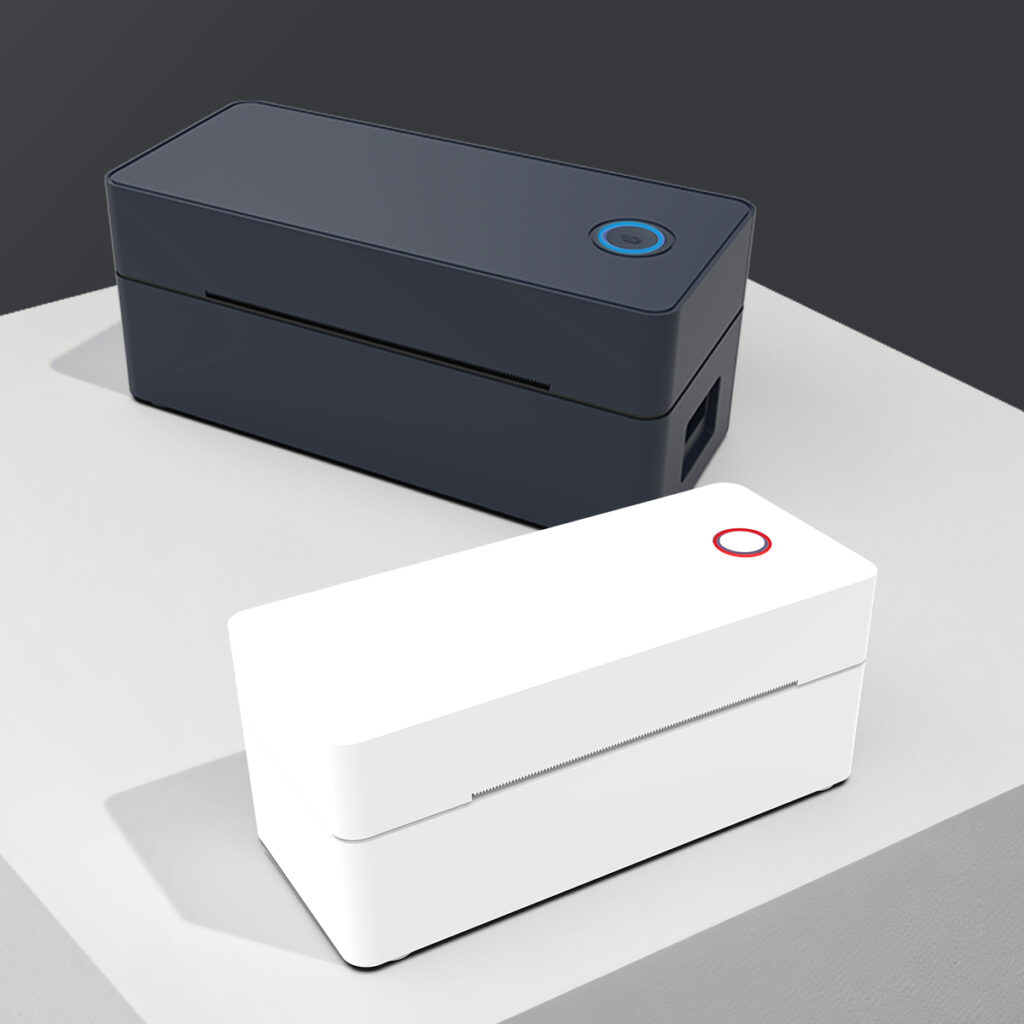
4 inch thermal label printing with configuration-dependent connection options.
View UR-4260 specificationsDiscuss your workflow, layout and equipment requirements.
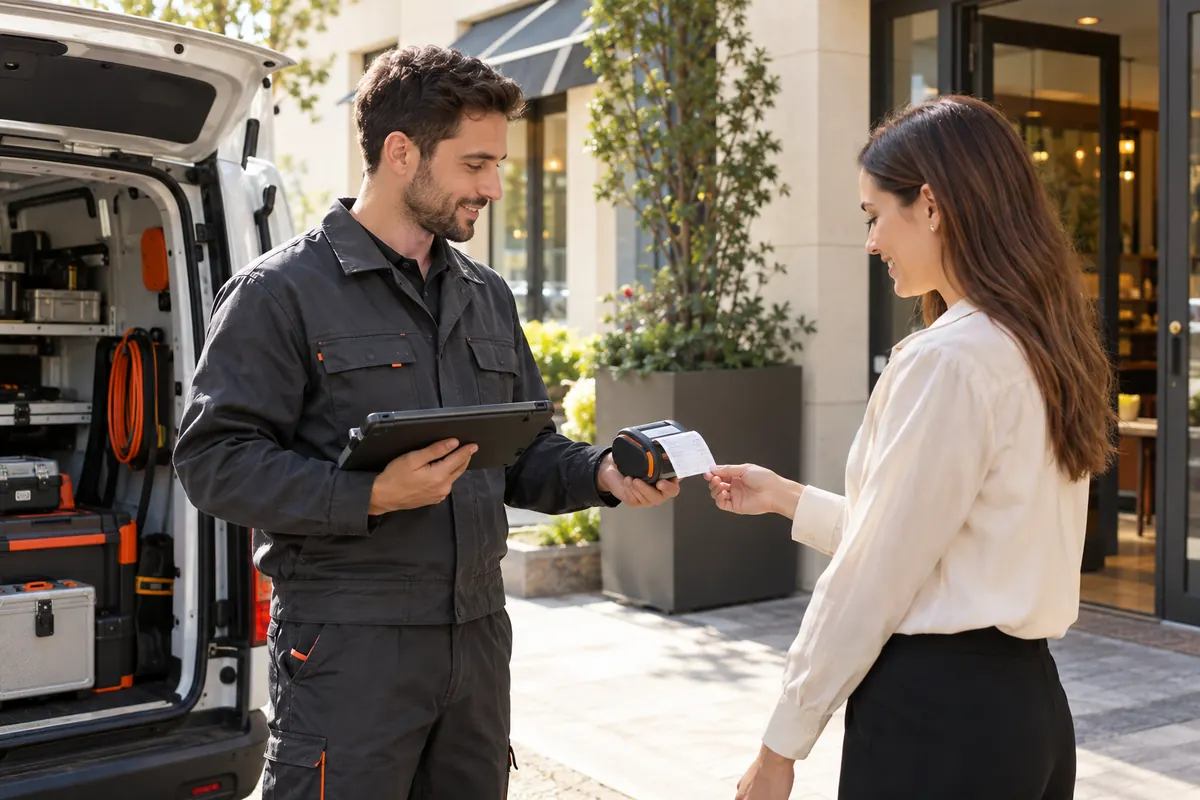
04 / APPLICATION
Field teams and mobile staff need to print where the work happens. The first step is to identify whether the task requires a small receipt, an adhesive label or an A4 document, because these formats need different printers and media.
Field staff need a printer they can carry and connect to the device used on the job. A service receipt, adhesive label and A4 document are different output formats and require different media.
PRINTING APPROACH
Use a battery-powered printer with a connection supported by the mobile device and printing application. Select a receipt-and-label model for small-format output, or an A4/A5 thermal-paper printer for documents. Review the paper width, charging method and environmental needs alongside the app workflow. A printer that supports the required media and layout lets staff produce records at the job location.
SUITABLE PRODUCTS TO EXPLORE
Browse mobile printers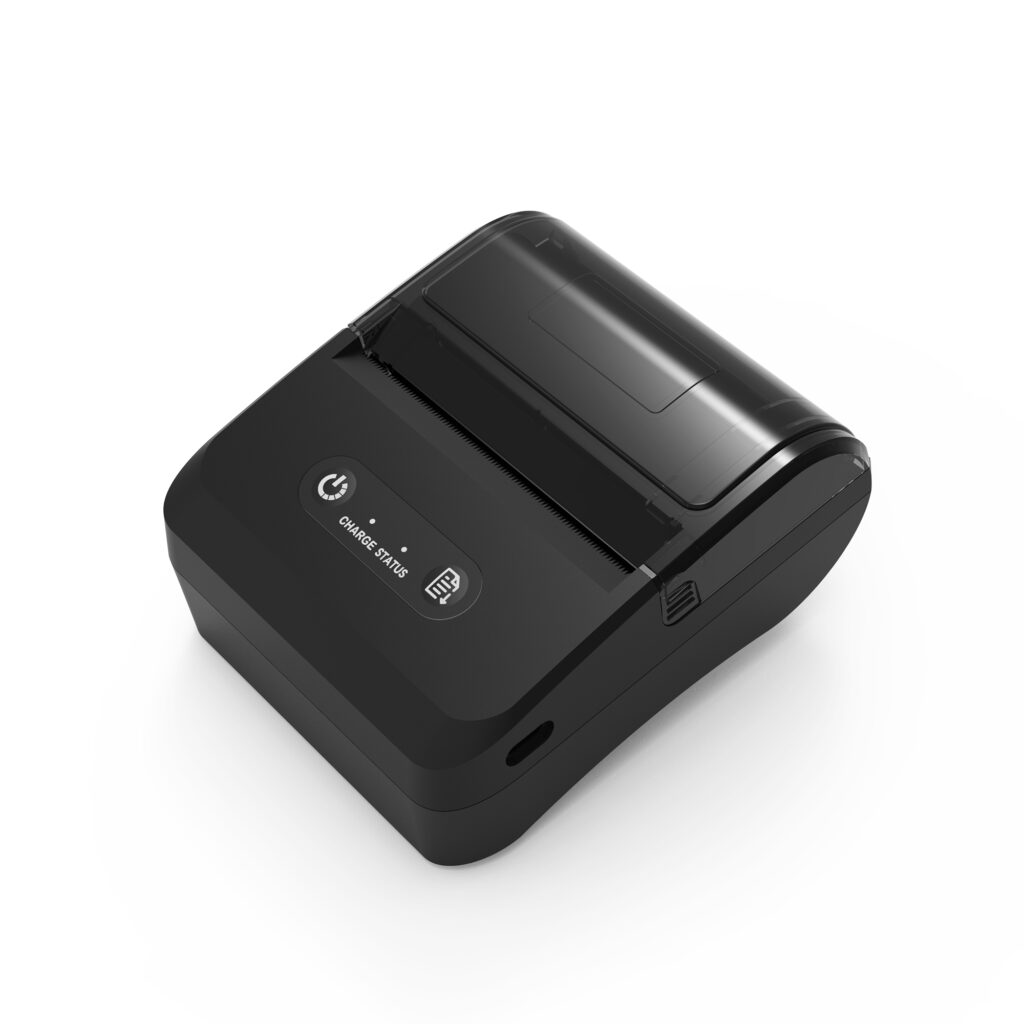
Mobile label and receipt printing with IP54 protection and 2 m drop resistance.
View UR-3006 specifications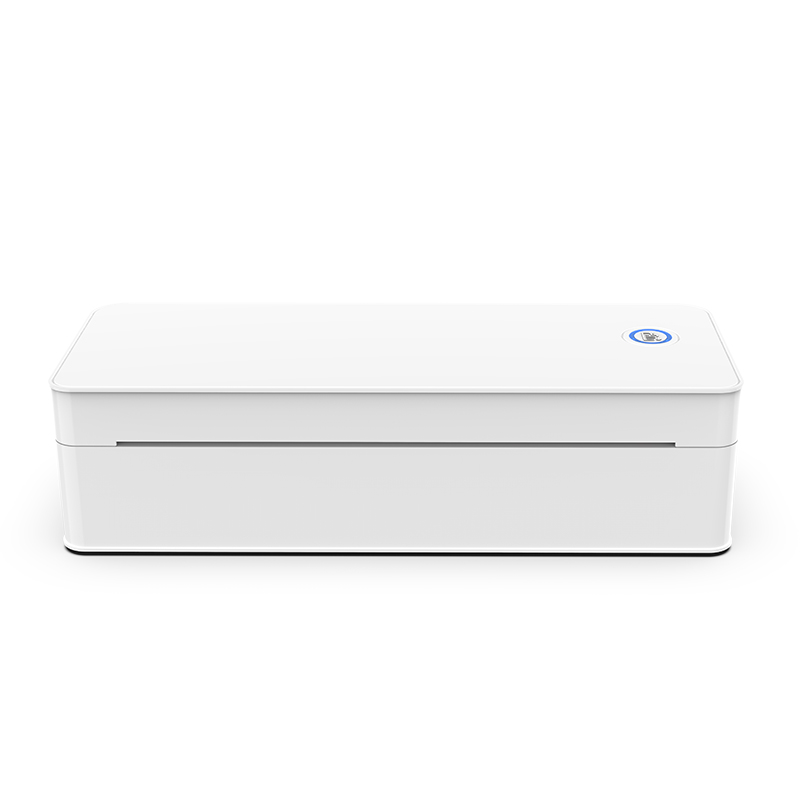
Discuss your workflow, layout and equipment requirements.
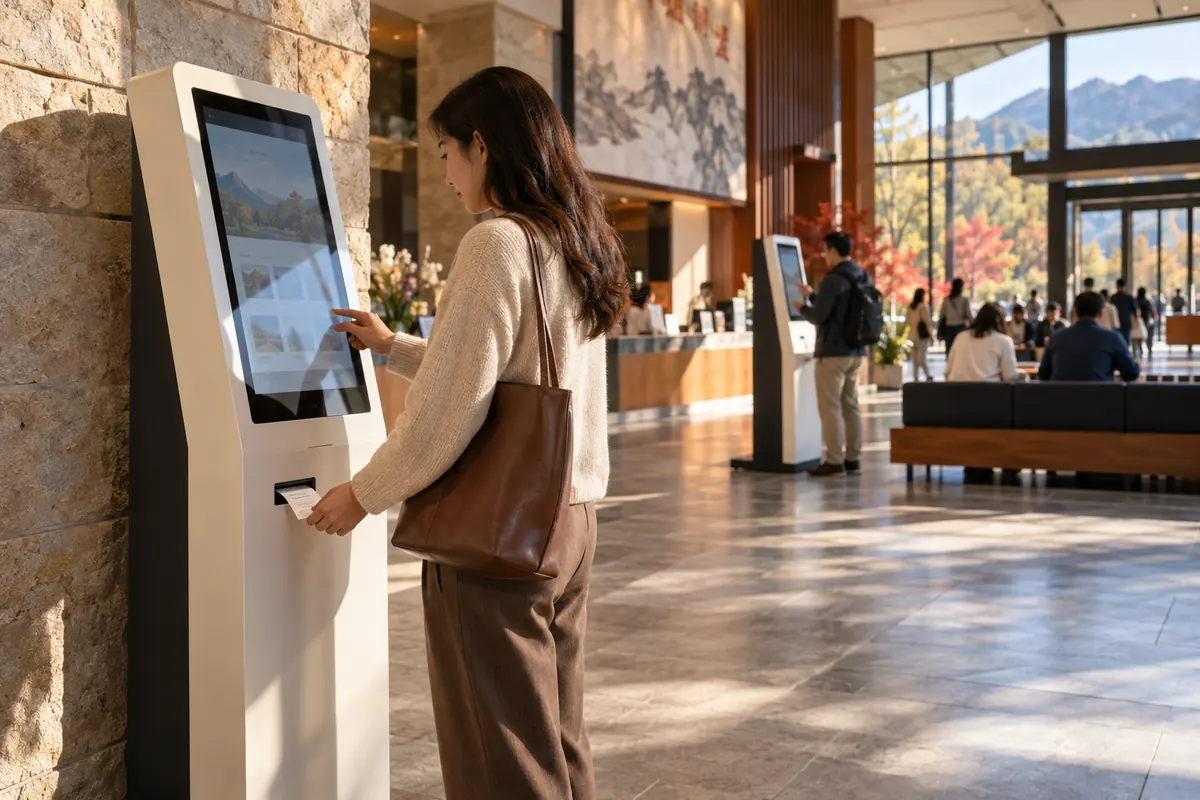
05 / APPLICATION
Self-service equipment and ticketing terminals need a print engine that fits the available installation space and paper path. A thermal printer mechanism can form part of the host equipment's receipt or ticket printing assembly.
The print engine must fit inside the terminal and allow paper loading, output collection and service access. Power, control and sensing need to work with the host equipment.
PRINTING APPROACH
Integrate a thermal printer mechanism into the host equipment with a suitable controller and paper path. Match printing width to the receipt or ticket layout, and use an automatic cutter where the assembly requires separated output. Plan the mounting arrangement, paper loading access and sensor connections together. The supplied mechanism and the host controller have distinct roles; check the components included with the selected model.
SUITABLE PRODUCTS TO EXPLORE
Browse printer mechanisms & modules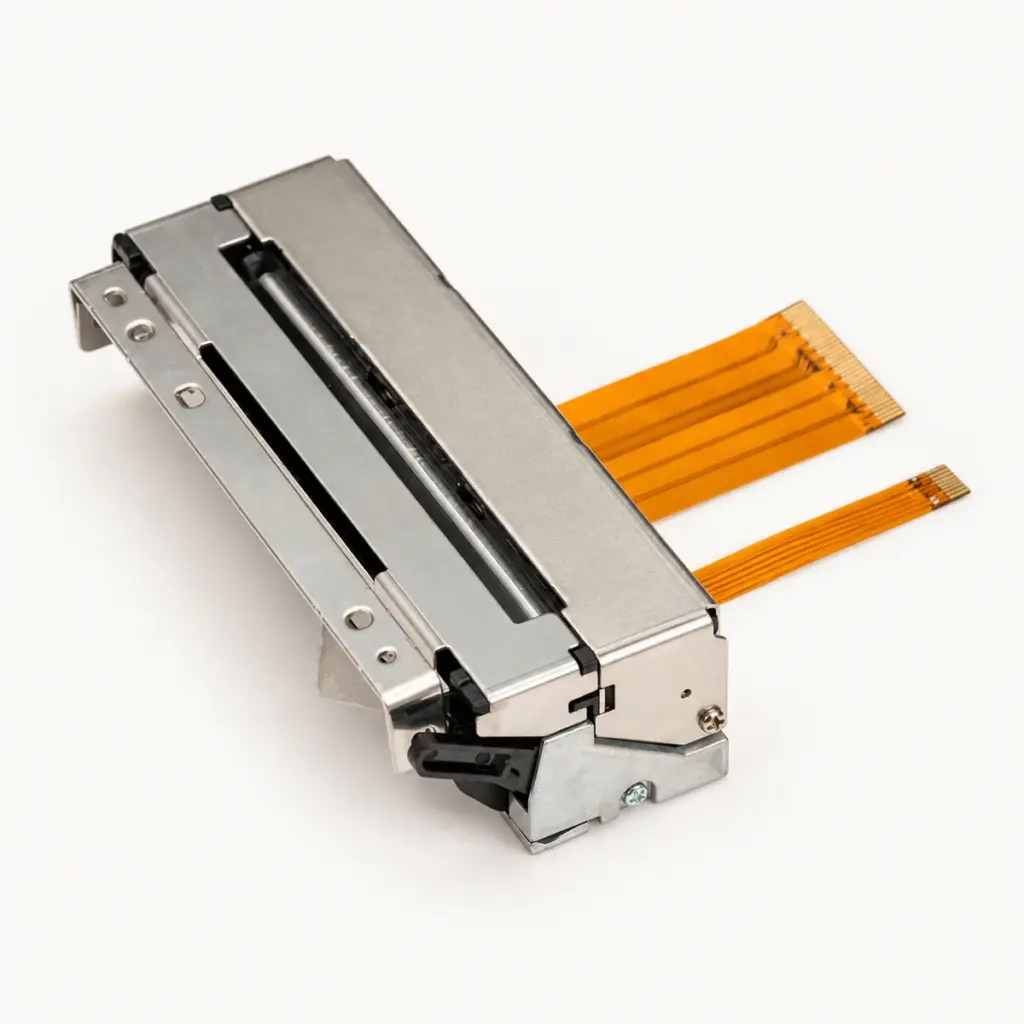
80mm CAPD347-compatible mechanism with an integrated automatic cutter.
View UR347C specifications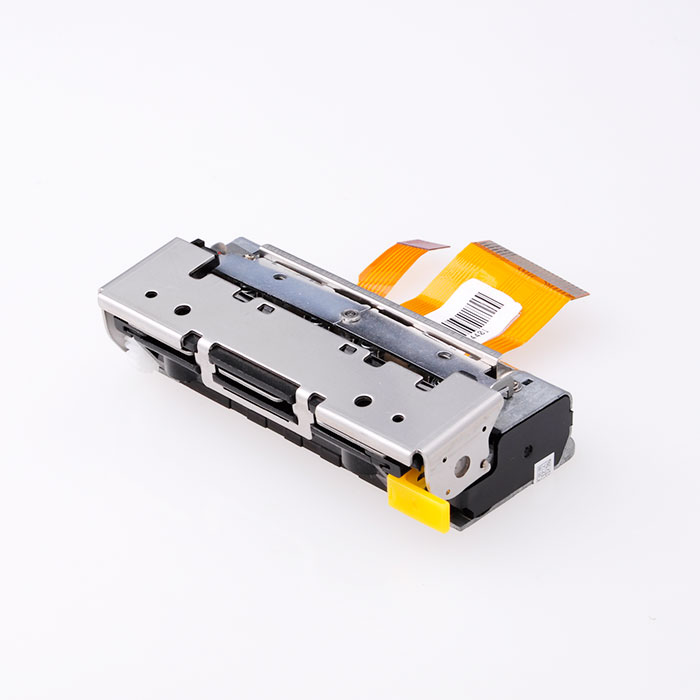
80mm thermal mechanism with a cutter and 72mm effective printing width.
View UR486F specificationsDiscuss your workflow, layout and equipment requirements.
06 / APPLICATION
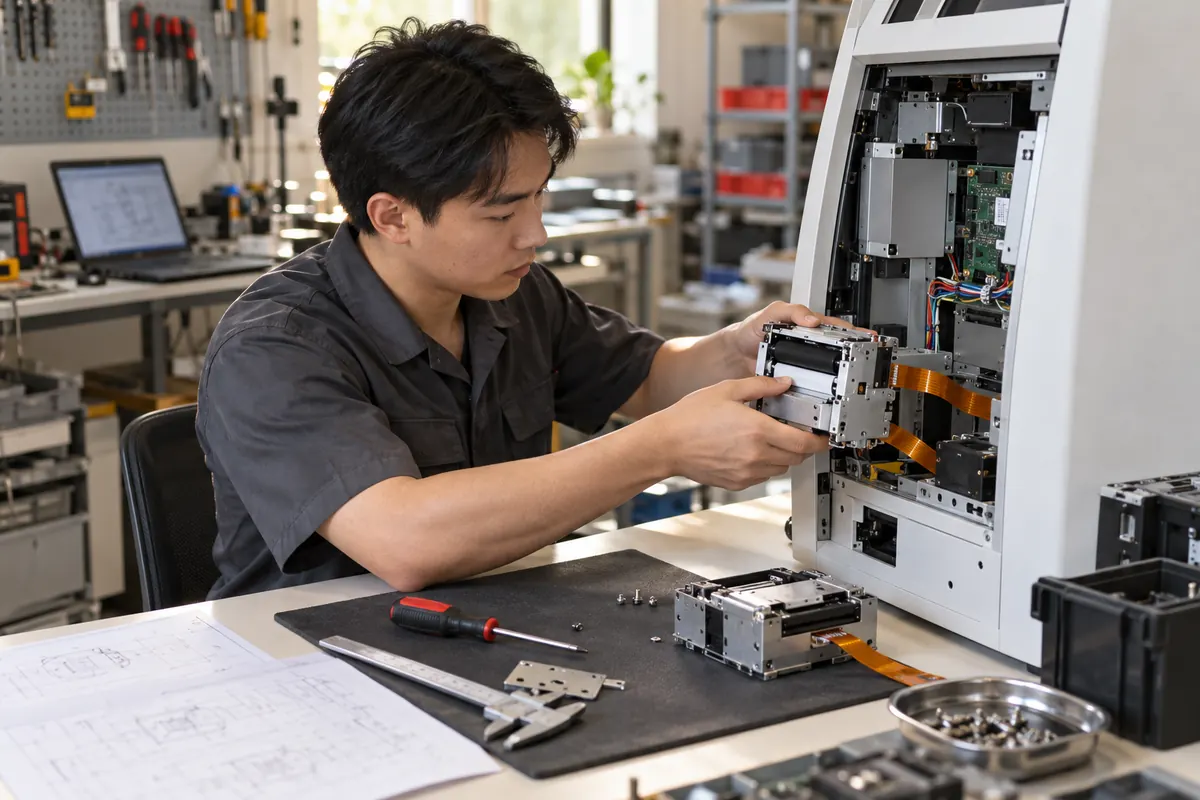
Equipment manufacturers and service teams may need a print engine for a new design or a replacement for an installed mechanism. Start by identifying the existing model, printing task and supplied components so the product matches the equipment's requirements.
A replacement should match the installed equipment, while a new design needs the right print engine and supplied components. Mounting, connections and the controller are part of the selection.
PRINTING APPROACH
For existing Seiko CAPD347-based equipment, a compatible replacement can retain the mounting arrangement, connectors, pin configuration, control board and firmware. Provide the installed mechanism model and required quantity when discussing replacement supply. For a new design, define the output format and installation space first, then choose a mechanism or printing module. Label-printing modules can include a control board, peeler and liner rewinder for equipment that needs those functions.
SUITABLE PRODUCTS TO EXPLORE
Browse printer mechanisms & modulesA Uright replacement option for existing Seiko CAPD347-based equipment.
View UR347C specifications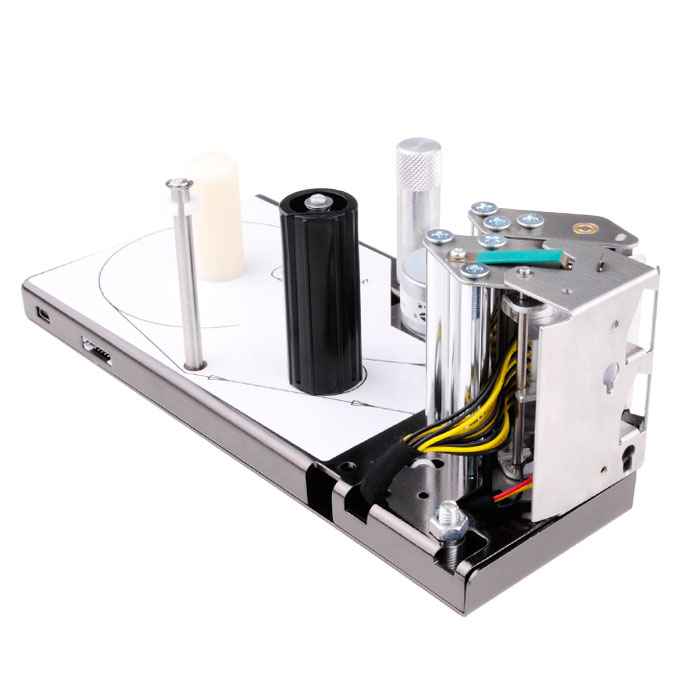
Thermal label-printing module with a control board, peeler and liner rewinder.
View UR561P specificationsDiscuss your workflow, layout and equipment requirements.
BEFORE YOU CHOOSE
Start with the output. Receipts normally use continuous thermal paper; adhesive labels require a printer and media setup that support your label dimensions and detection method. Send a sample layout if you are unsure which product range fits your task.
Some models support both tasks. The UR-3006 supports compatible thermal receipt and label media, while other mobile models have different capabilities. Check the individual product page and share your app and media requirements before choosing.
A mechanism is a print engine for integration into host equipment and may require an external control or driver board. Supplied components vary by product. The UR561P and UR802A label-printing modules include a control board, label-peeling mechanism and liner-rewinding mechanism; the UR347C mechanism includes an automatic cutter and is supplied without a control board.
Share your application, sample receipt or label, paper dimensions, device or software, preferred connection and required quantity. For equipment integration or replacement, also include the installation space and existing mechanism model. Contact Uright Tech by email or WhatsApp.