
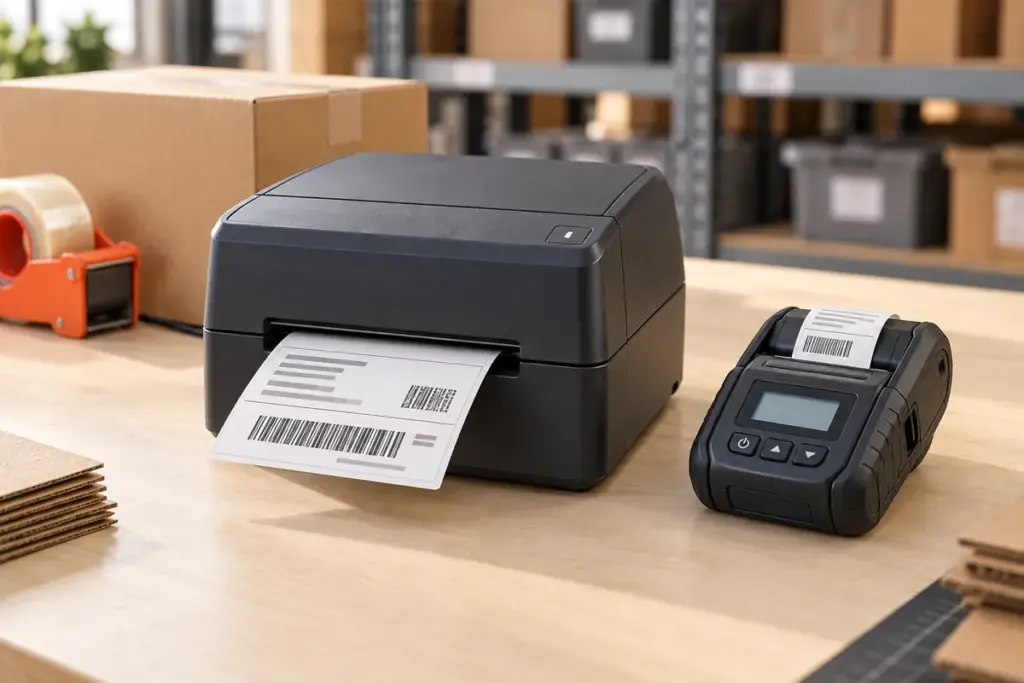
Choose a desktop label printer when labels are produced at a fixed packing desk, counter or workstation. Consider a mobile label printer when staff need to take the printer to the goods, shelf or service location. Then check whether the required label size, media and software fit the selected model.
This desktop vs mobile label printer guide compares the working arrangements behind those choices. It introduces the Uright UR-4260 and UR-4250 for fixed workstations, and the UR-3006 and UR-2816 for portable label printing. The aim is to match the equipment to the job rather than select by enclosure size or a wireless connection alone.
The Main Difference Is Where Printing Happens
A fixed printer gives staff a known location for generating and collecting labels. This can fit a packing desk where each parcel already passes through the same station. Paper supply, loading access, power and the host device can be arranged around that position.
A battery-powered mobile printer travels with the operator. Staff can prepare a label beside a shelf, item or receiving location and apply it there. The benefit depends on the workflow: if people frequently return to a desk just to collect labels, taking a suitable printer to the task may remove those trips. For general context, Zebra’s mobile printing overview also describes printing at the point of application.
Neither arrangement guarantees better output or higher productivity in every situation. Consider the label format, the software interaction and how staff identify and label the correct item.
| Selection point | Desktop label printer | Mobile label printer |
|---|---|---|
| Working position | A planned counter, desk or fixed station | Moves with staff to the task location |
| Power planning | Provide the required power supply at the station | Plan battery charging and availability during the job |
| Media handling | Allow space for the chosen roll or fanfold supply and loading | Match the supported paper, roll diameter and carrying arrangement |
| Software connection | Select the interface and integration for the host system | Check the mobile device, application and selected interface |
| Operator handling | Print, collect and apply at or near the station | Print and apply where the item is being handled |
| Label fit | Check the individual model’s media and print limits | Check the individual model’s media and print limits |
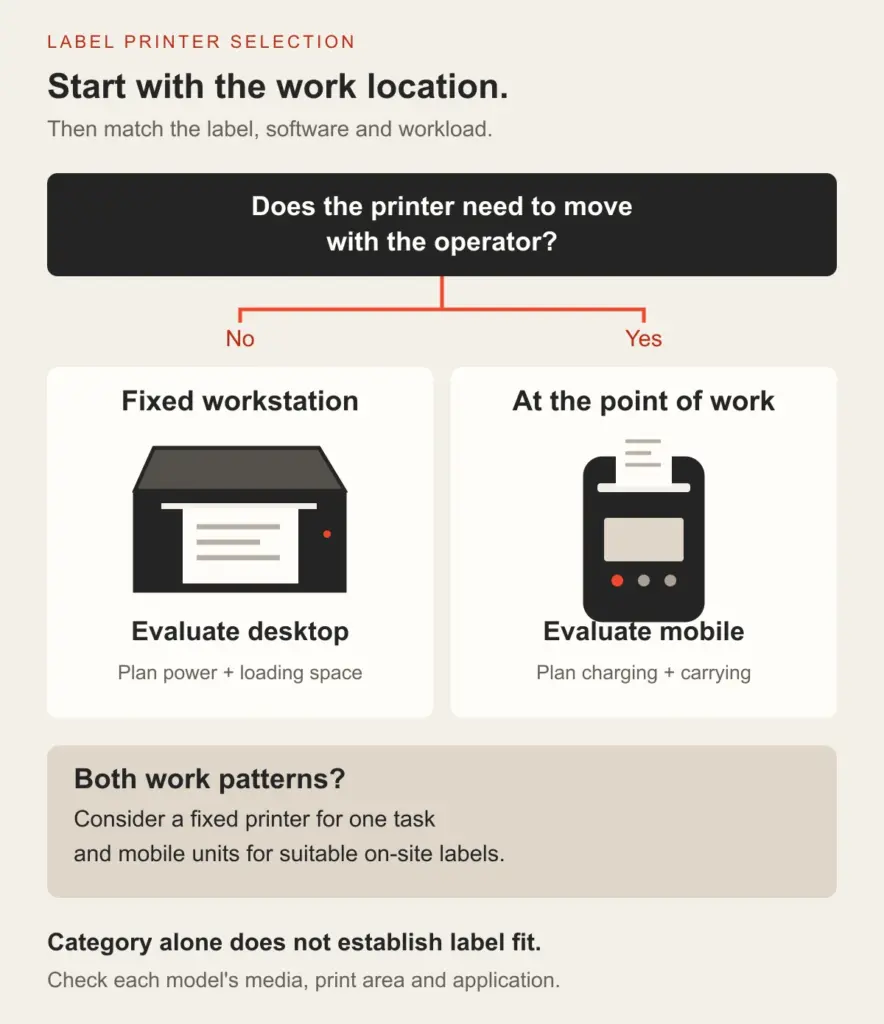
Workflow selection guide. The branches describe working arrangements, not a guarantee that every printer in a category supports the same labels, software or workload.
Three Workflows to Compare
A Fixed Packing Desk
When orders are packed, checked and dispatched at one desk, a desktop label printer is a useful starting point. Keep the label supply accessible and position the printer so staff can collect output without moving parcels across the feed path.
Select the equipment around the actual shipping-label layout. The need for a wider parcel label does not disappear because a smaller printer is easier to carry. Our 4-inch thermal shipping label printer guide explains media width, effective print area and packing-desk selection in more detail.
Warehouse Receiving and Item Identification
For staff moving between incoming goods, storage bins or inspection points, evaluate whether labels should be printed beside the item. A mobile setup can combine a supported host device, the labeling application and a battery-powered printer carried to the working position.
Review the full sequence: identify the item, select the right record, print, apply the label and confirm the task. Equipment selection should support that sequence. A small portable printer is useful only when its paper and printing area accommodate the required identification label.
Retail Shelf and Stock Tasks
Mobile printing can be considered for shelf-label changes or small item-identification labels prepared near the goods. A fixed backroom printer may still suit labels generated in planned batches. Compare how staff select the correct label, carry the equipment and separate and apply the output.
Use the required label sample to decide whether a narrow-format device is suitable. Do not assume that a receipt-only printer can handle adhesive label stock; check the selected model’s media support and detection functions.
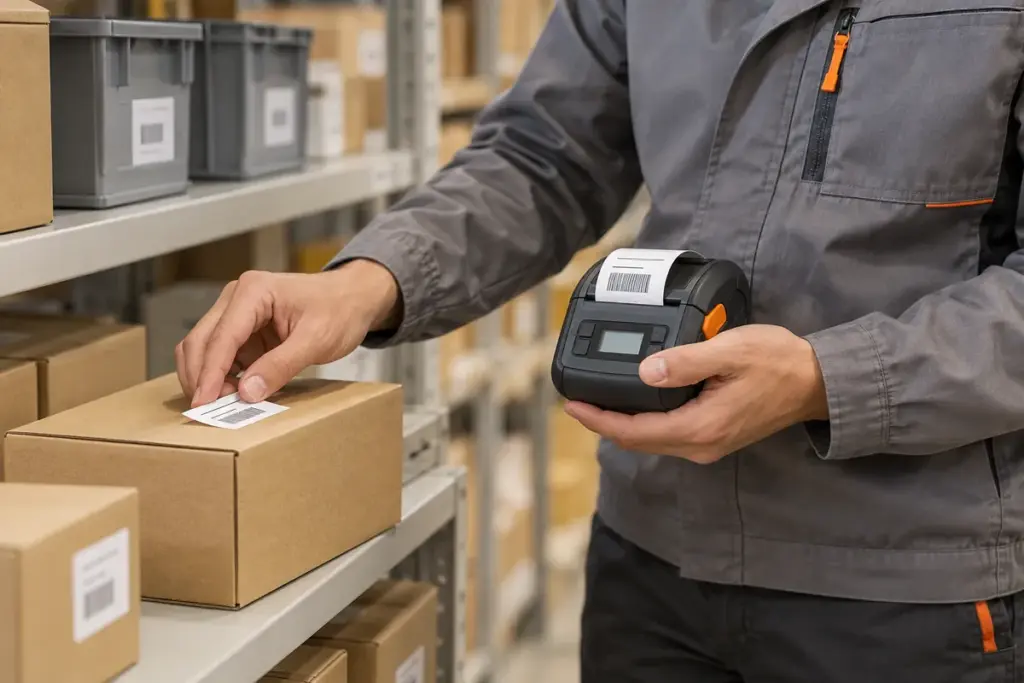
Illustrative on-site labeling scene; not a specific Uright model or customer installation. The depicted label and accessories do not establish compatibility or included-supply claims.
Check Label Fit Before Comparing Portability
Paper width and effective printing width are different measurements. The media must fit the paper path, while the complete text, barcode and required margins must fit the usable image area. Compare the dimensions of the actual stock and artwork with the individual product specifications.
For example, the UR-3006 lists a paper width range of 20–80 mm and a printing width of 72 mm. The UR-2816 lists a narrower paper width range of 20–50 mm. These models should be considered for labels within their respective requirements, rather than treated as substitutes for every 4-inch parcel-label task.
Also compare label length, paper thickness, gap or black-mark requirements, and roll size. The UR-3006 lists a maximum roll diameter of 43 mm; the UR-2816 lists 50 mm. The printer’s overall size alone does not tell you how much suitable media it holds.
Roll changes, access to spare media and liner disposal are part of the job. For a fixed workstation, include the external supply footprint if one is required. For a carried printer, use a media-loading and carrying arrangement appropriate to the task.
Plan Power, Carrying and Environmental Requirements
For a desktop installation, check the required adapter, socket position, cable route and access for loading media. Leave enough room to operate the cover and handle labels as well as accommodate the enclosure.
For mobile work, plan when and where the battery will be charged. The UR-3006 specifies a 7.4 V, 2000 mAh rechargeable battery; the UR-2816 specifies a 1500 mAh rechargeable battery. Capacity alone does not establish how long either printer will run in your workflow. Printing activity, connection use and operating conditions also matter.
Check the carrying method and access to the paper exit, display and controls. If a belt clip, strap or carrying accessory is required, confirm its suitability and supply separately rather than assuming it is included.
The UR-3006 lists IP54 protection and tested 2 m drop resistance onto concrete. These are specific product characteristics, not a promise of unrestricted use in every environment or protection against all damage. Match the selected printer and media to the actual conditions of the job.
Wireless Connectivity Does Not Establish Mobile Capability
A desktop printer can have Bluetooth or Wi-Fi and still be intended to remain at a powered workstation. A wireless data connection does not by itself establish battery operation, convenient carrying or suitability for a moving operator.
For either arrangement, check the software sending the print job. Record the host device, operating-system version, labeling application, required printer commands and connection. Successful pairing or network discovery is only part of a working printing setup.
The UR-3006 lists USB Type-C and Bluetooth as standard interfaces, with Wi-Fi optional. The UR-2816 lists USB Type-C and Bluetooth 4.0. The desktop models have their own configuration-dependent interface options. Compare the versions you intend to order rather than transferring the capabilities of one model to another.
Our USB, Ethernet and Bluetooth connection guide explains the basic terms using receipt-printer examples. For label printing, match the selected model’s software, media and connection requirements together.
Uright Models to Consider
Desktop Options: UR-4260 and UR-4250
The UR-4260 4-inch thermal label printer is the main fixed-workstation starting point in this guide. Its specifications include 203 dpi, 160 mm/s printing and dimensions of 180 × 78 × 75 mm. USB, Bluetooth and Wi-Fi options depend on configuration. Review the label supply and required print area alongside the desk layout.
The UR-4250 provides another desktop option. It lists 203 dpi, 160 mm/s, a maximum media width of 104 mm and a maximum printing width of 100 mm. Its USB, Ethernet, Bluetooth and Wi-Fi options depend on configuration. Compare the complete stock and label layout against those limits.
Mobile Options: UR-3006 and UR-2816
The UR-3006 mobile thermal label and receipt printer is the main portable option here. It supports the listed continuous paper, gap-label and black-mark media, with 203 dpi resolution and 50 mm/s printing. Evaluate it for supported label formats where carrying the printer to the work location is useful.
The UR-2816 portable label and receipt printer is an additional option for narrower paper requirements. It lists 203 dpi, continuous thermal paper and thermal label paper support, plus label and black-mark detection. Match the selected media, command mode and application before use.
| Model | Selection starting point | Key format check |
|---|---|---|
| UR-4260 | Fixed labeling workstation | Match the actual label and supply arrangement to the selected configuration |
| UR-4250 | Fixed labeling workstation | Maximum media width 104 mm; maximum printing width 100 mm |
| UR-3006 | Printing beside the goods or work location | Paper width 20–80 mm; printing width 72 mm |
| UR-2816 | Portable printing for narrower labels | Paper width 20–50 mm; check the required printed layout |
Explore the mobile printer range and desktop label printer range. The Mobile Printing application and Shipping Labels & Logistics Printing application provide additional workflow context.
A Checklist for Choosing the Working Arrangement
- Map where staff identify the item, generate the label and apply it. Note any repeated trips to a printer.
- Provide a sample label with its media dimensions, barcode content and required margins.
- Identify the host device, software, operating system and connection method.
- Estimate representative batch sizes and the frequency of printing, media changes and charging.
- Check loading space, power, carrying arrangements and environmental requirements.
- Run the intended workflow with representative output before choosing the final configuration for a larger deployment.
Some operations benefit from both arrangements: a fixed printer for wider parcel labels and mobile units for suitable item-identification labels. Select each device for its own task instead of making one format cover every requirement.
Email Uright Tech or contact us on WhatsApp with your label sample, working location, software and quantity. We can help match a desktop or mobile configuration to your proposed workflow.
Frequently Asked Questions
Is a Bluetooth Label Printer Always a Mobile Printer?
No. Bluetooth describes a data connection. Check battery operation, carrying arrangements, dimensions and the intended working setup separately.
Can a Mobile Printer Replace a 4-Inch Desktop Label Printer?
Only when the required label, software and workload fit the proposed mobile model. The mobile models described here have different width limits from the desktop options, so they should not be assumed to print the same layouts.
Is a Desktop Printer Always Faster?
Compare the specific products and complete workflow. Rated print speed is one factor; job preparation, label length, handling and the location of the printer also affect task completion.
Can One Operation Use Desktop and Mobile Printers Together?
Yes, provided the host software supports the required devices and printing paths. For example, a fixed dispatch desk and staff performing smaller-label tasks beside goods may need different equipment.
How Long Will a Mobile Printer Battery Last?
Evaluate it with the intended printing activity and operating conditions. Battery capacity alone does not establish a universal runtime, standby time or label count.