
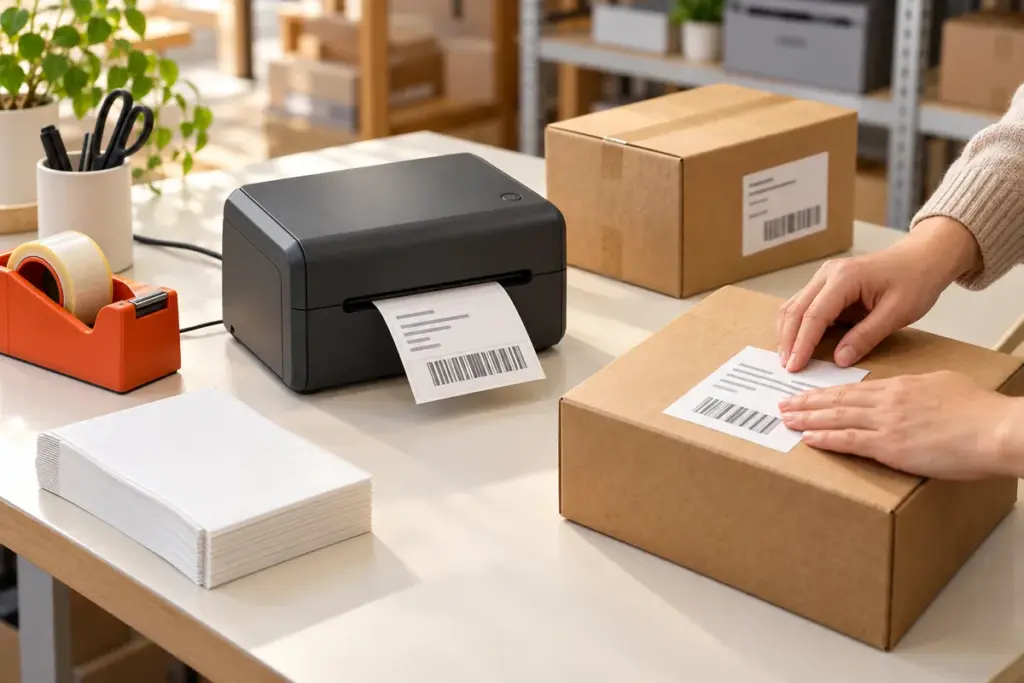
Choose a 4 inch thermal shipping label printer around the label you actually need to produce: its dimensions, printable content, media type and the software sending the job. Then compare the printer’s connection options, paper handling and fit on your packing desk.
A printer described as 4-inch is a starting point for selection. The label stock must fit the media path, while the address, barcode and other required content must fit within the effective printing area. This guide explains those checks and introduces two Uright options: the compact UR-4260 and the UR-4250.
Start with a Sample Shipping Label
Before comparing models, obtain a real label file or template from your shipping, order-management or warehouse system. Record the required label size and check whether the output is a label-sized PDF, an image, a full-page document or printer-command data.
Include your longest address format and the barcode types you expect to use. If several shipping services are involved, collect representative samples rather than assuming one layout covers every service.
| Selection point | What to check |
|---|---|
| Label layout | Required dimensions, orientation, text, barcodes and clear margins |
| Label stock | Total media width, label width, length, thickness and separation type |
| Supply format | Roll dimensions and core, or a compatible fanfold feed arrangement |
| Software | Operating system, driver or integration method, and output format |
| Connection | The interface included in the selected printer version |
| Packing workflow | Available space, batch size, loading access and operator handling |
Understand Label Width, Media Width and Printing Width
These three measurements answer different questions.
Label width is the width of the adhesive label itself. Media width includes the release liner that travels through the printer. Effective printing width is the span the printhead and printer settings can actually cover. A stock may fit the printer physically while part of its artwork extends beyond the usable print area.
The term 4-inch does not promise edge-to-edge printing across every stock described with that size. A 4 × 6 inch label measures 101.6 × 152.4 mm; use the actual dimensions of your required stock and file rather than treating every approximately similar metric format as identical.
Keep the complete barcode and its required clear margins inside the usable area. These margins, often called quiet zones, are part of barcode readability rather than spare space to remove. GS1 explains why quiet zones matter; the required dimensions depend on the barcode symbol and size.
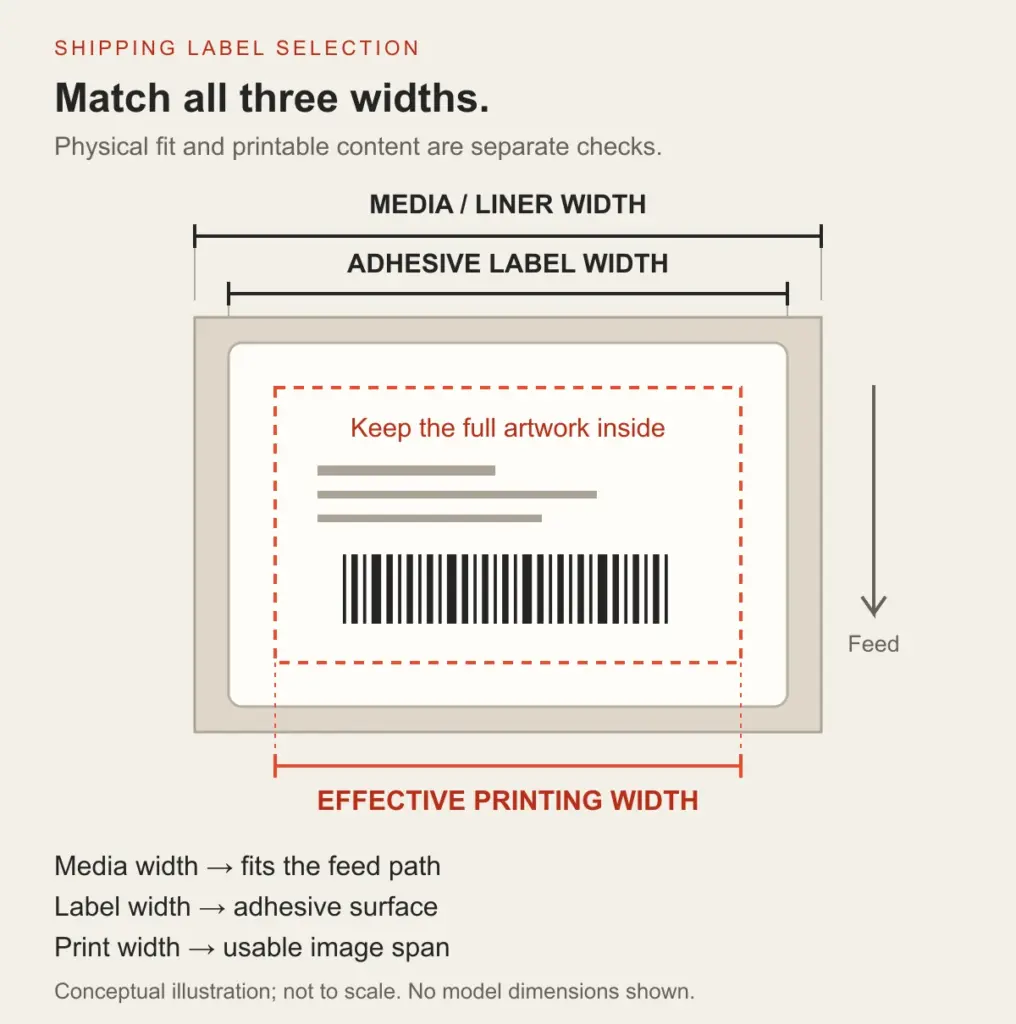
Conceptual cross-media width illustration, not to scale. The colored print-area guide is explanatory and is not printed on the label. Check the selected model and actual label stock.
Choose Suitable Direct Thermal Labels and Supply Format
Direct Thermal Media
The Uright models in this guide use direct thermal printing: the printhead produces the image on compatible heat-sensitive media without an ink cartridge or ribbon. Select label stock intended for direct thermal use, with an adhesive and surface suitable for the parcel and expected handling conditions.
Print method and label durability are separate decisions. Consider exposure to heat, sunlight, rubbing and moisture when selecting the material. A clear print at the packing desk is useful only if the label remains readable through the required handling period.
Roll Labels or Fanfold Labels
Roll labels require a compatible loading arrangement. Check media width and thickness, the roll’s outside diameter, and any core or holder requirements. If the selected configuration uses an external holder, include its footprint in the workstation plan.
Fanfold labels are supplied as a folded stack and require a compatible feed path. Leave room behind the printer for the stack and an unobstructed route to the inlet. Place the supply so it feeds without dragging, twisting or catching on nearby parcels.
Neither format guarantees better output by itself. Choose around the equipment’s loading requirements, available supplies and the way staff replenish labels.
If staff need to print away from the packing desk, compare desktop and mobile label printers before choosing the working arrangement.
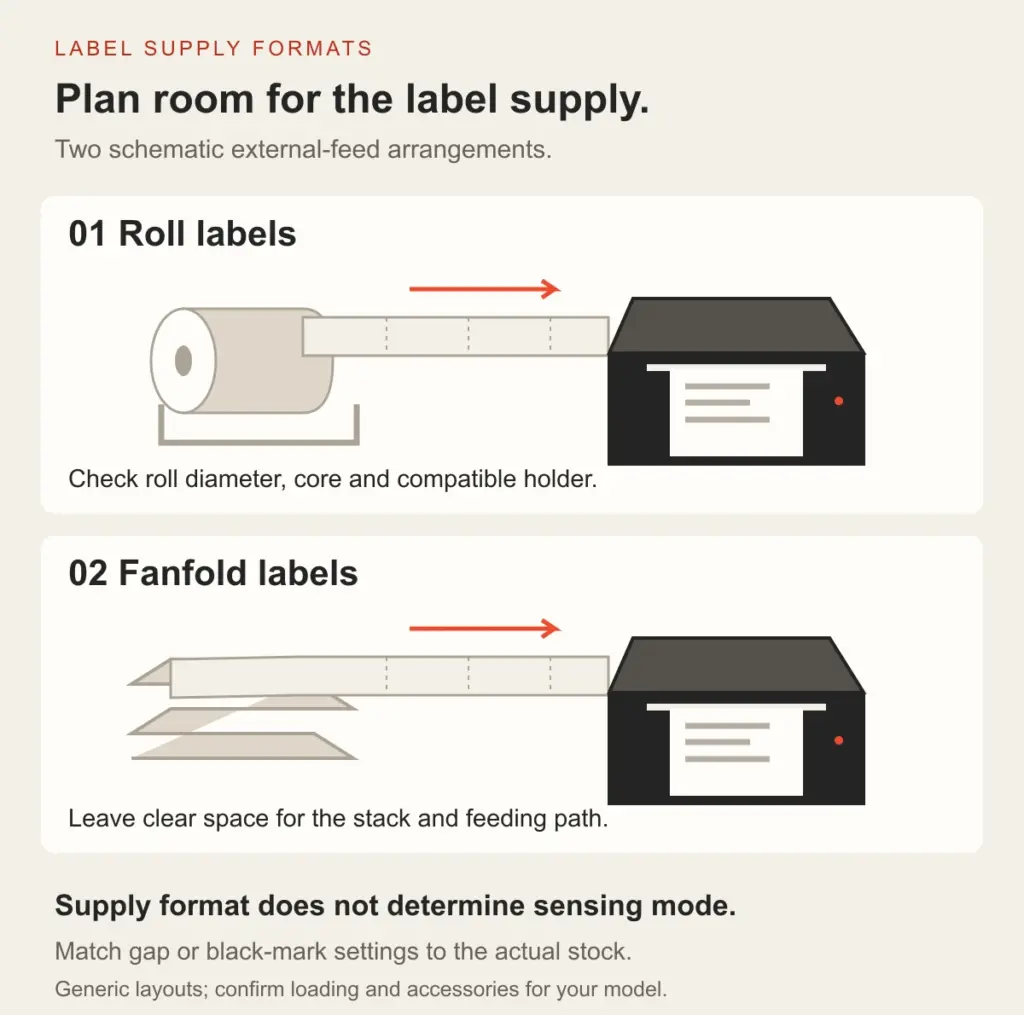
Alternative supply arrangements shown schematically. Confirm compatible loading, holder requirements and clearance for the selected printer configuration; pictured accessories are not an included-supply list.
Match Gap or Black-Mark Detection to the Stock
Die-cut labels may be separated by gaps or identified by marks on the liner. Continuous media has no individual die-cut label boundary. Select the media mode and any required calibration procedure to match the stock. Roll versus fanfold describes the supply format; it does not by itself establish the detection method.
Manufacturer guidance such as Zebra’s overview of roll and fanfold media illustrates these distinctions. Use the Uright model’s own setup guidance for the actual loading and settings.
Compare Readability and Real Packing Throughput
Both the UR-4260 and UR-4250 specify 203 dpi resolution and a printing speed of 160 mm/s. Resolution and rated speed are useful specifications, but they do not tell you how every label file will print or how many parcels staff can complete in an hour.
Evaluate the smallest required text, barcode size and clear margins using representative output. Where a layout calls for finer detail than a candidate printer can reproduce, review the artwork and resolution requirement before ordering. Avoid shrinking a complete shipping label solely to make it fit: that also changes the text and barcode dimensions.
For throughput, observe the complete task: the software prepares the job, the printer feeds the label, and the operator separates and applies it. Label length, job processing, feed behavior and handling all affect the result. A stated speed in mm/s is not a fixed labels-per-minute figure.
Check Software, Connection and File Settings Together
Start with the application that creates the label. Confirm the operating system and the available driver or integration method for that application. Then select the appropriate USB, network or wireless configuration from the product’s actual options.
Listed TSPL, CPCL or ESC/POS command support should be matched to the selected firmware and operating mode. These listings do not establish support for every command or shipping application. A PDF or image normally needs a software printing path; the file extension alone is not a printer language.
For PDFs, match the document page size, printer media settings and intended output scale. A label placed inside a full A4 or Letter page may need the correct label-format export or an application-supported page selection. Adobe distinguishes Actual size from Fit: one preserves scale, while the other resizes content to the selected printable area. Choose the method required by the template, then inspect the printed result.
If you are comparing connection terms, our USB, Ethernet and Bluetooth printer guide explains the basic differences using receipt-printer examples. For label printers, use the connection options and software requirements of the specific model below.
Uright 4-Inch Label Printer Options
UR-4260: A Compact Starting Point
The UR-4260 4-inch thermal label printer measures 180 × 78 × 75 mm, making it worth considering where equipment space is limited. Its listed specifications include direct thermal printing, 203 dpi resolution and 160 mm/s speed. USB, Bluetooth and Wi-Fi options depend on configuration.
Plan space for the label supply and loading access in addition to the printer’s enclosure. Share your sample label and media dimensions so the required print area and feed arrangement can be matched to the proposed configuration.
UR-4250: An Additional Configuration Choice
The UR-4250 4-inch thermal label printer also specifies direct thermal printing, 203 dpi and 160 mm/s. Its dimensions are 215 × 180 × 115 mm. Listed interface options include USB, Ethernet, Bluetooth and Wi-Fi, depending on configuration.
For this model, the maximum media width is 104 mm and the maximum printing width is 100 mm. Those limits apply to different parts of the selection: the liner must fit the media path, while the complete printed layout must fit within the print area.
| Selection point | UR-4260 | UR-4250 |
|---|---|---|
| Printing method | Direct thermal | Direct thermal |
| Resolution | 203 dpi | 203 dpi |
| Specified speed | 160 mm/s | 160 mm/s |
| Enclosure dimensions | 180 × 78 × 75 mm | 215 × 180 × 115 mm |
| Listed interfaces | USB / Bluetooth / Wi-Fi | USB / Ethernet / Bluetooth / Wi-Fi |
| Label-layout fit | Confirm against the actual label and selected configuration | Maximum media width 104 mm; maximum printing width 100 mm |
Interface options are configuration-dependent; this table is not a list of interfaces included in every unit. Review individual specifications in our label printer range and the workflow in Shipping Labels & Logistics Printing.
A Practical Checklist Before Ordering
- Provide a representative label file and its required dimensions, including orientation and barcode content.
- Identify the media: adhesive label and liner widths, length, thickness, gap or black mark, and direct thermal material.
- Specify roll or fanfold supply, including roll/core dimensions or the available stack and feed space.
- Name the software, operating system and required connection, plus the preferred model and quantity.
- Check sample output at the intended scale for readable text, complete barcodes and correct label positioning.
- Review a representative batch for feeding, separation and operator handling before a larger deployment.
Email Uright Tech or contact us on WhatsApp with your sample label and workstation requirements. We can help you choose a suitable model and configuration for the proposed workflow.
Frequently Asked Questions
Can Every 4-Inch Printer Print Every 4 × 6 Label?
No. Compare the actual stock dimensions and required print area with the selected printer’s media and printing limits. Software output, margins, orientation and scaling also need to match the layout.
Do Direct Thermal Label Printers Need Ink or Ribbon?
The two Uright models described here use compatible direct thermal media and do not require ink cartridges or ribbon. Choose the correct heat-sensitive stock for that printing method.
Are Roll Labels Better Than Fanfold Labels?
Neither is universally better. Compare compatible loading, roll or stack space, replenishment and feed clearance. Check the selected configuration’s holder and media requirements.
Will These Printers Work with My Shipping Platform?
Compatibility depends on the actual application, its output method, the host operating system and the selected printer configuration. Send the software details and a sample label so the printing path can be reviewed.
Why Might a Label Print at the Wrong Size?
Check the source document size, selected media size, orientation and scaling first. Also confirm that the content fits within the effective print area. Correct the template and settings together rather than repeatedly resizing without checking the barcode.