
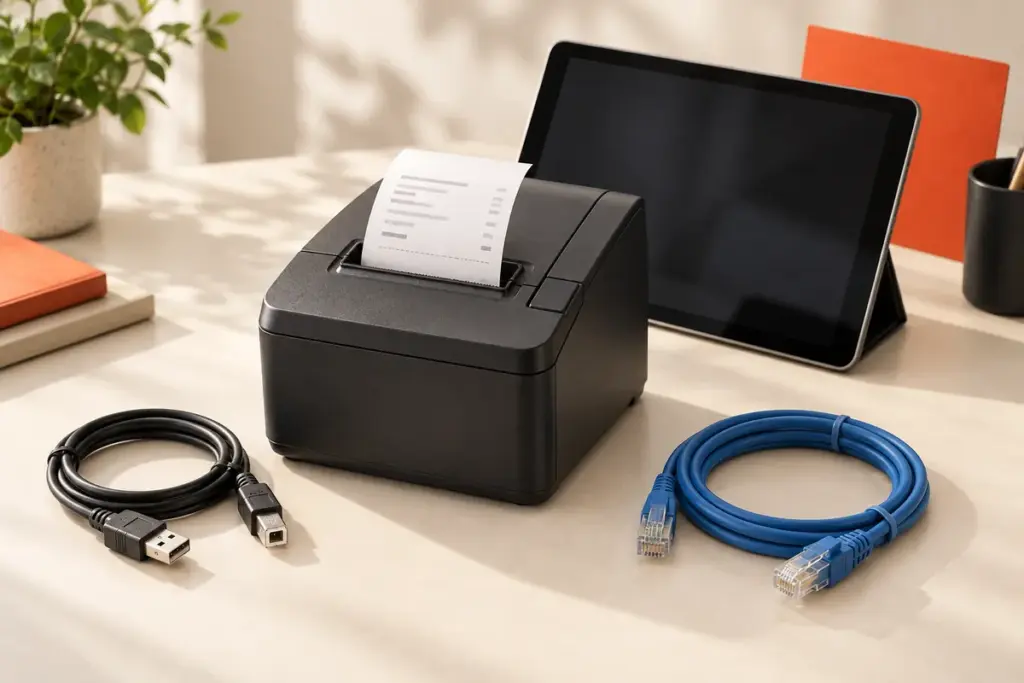
Choose USB for a fixed checkout where the receipt printer sits near one supported POS computer. Consider Ethernet when the printer needs a wired network connection or your software must route orders from different terminals. Consider Bluetooth for a compatible tablet or mobile device when a direct wireless link fits the workflow.
This USB vs Ethernet vs Bluetooth receipt printer guide compares the three connections, explains what to confirm with your POS software, and shows how to choose a Uright printer configuration. Start with the device and application that will send the print job, then choose the interface.
USB, Ethernet and Bluetooth: A Quick Comparison
| Connection | A useful starting point for | How print data reaches the printer | Main point to confirm |
|---|---|---|---|
| USB | One fixed checkout with a nearby POS computer | A USB cable connects the host device to the printer | Host support, driver or application integration, and the correct cable |
| Ethernet (LAN) | Networked checkout or order-output stations | The printer connects by cable to the local network | Network settings, reachable printer address, and POS routing support |
| Bluetooth | A supported tablet or mobile POS setup | A direct wireless connection between the host and printer | Exact device, operating system, app and printer version |
The interface carries the print data; it does not guarantee software compatibility. A connected printer still needs the correct driver, application support or integration method. Choose the connection that matches the daily workflow rather than assuming that wireless is always better.
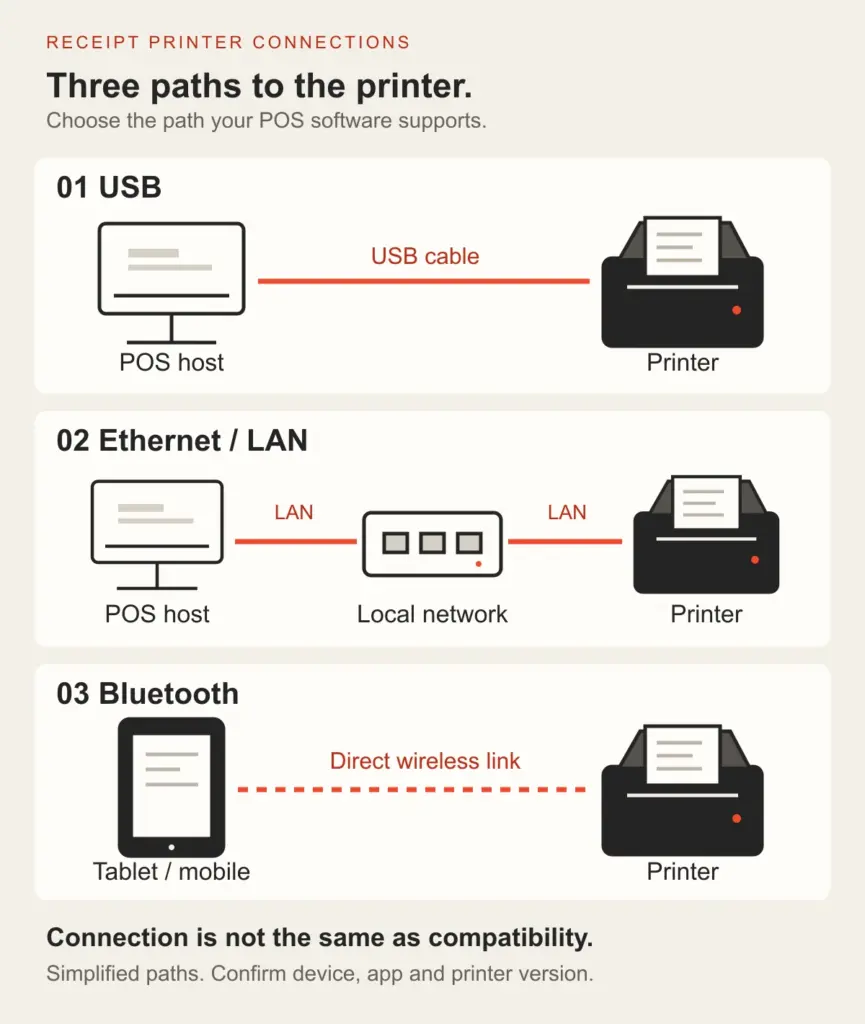
Simplified connection paths. Network access and compatible printing software are required; the diagram does not show a specific printer’s ports or included accessories.
When a USB Receipt Printer Makes Sense
USB is a practical starting point when one POS computer and one receipt printer occupy the same counter. The connection is direct, and the layout is easy to explain to staff: the selected computer sends receipts through its USB connection.
Before choosing a USB receipt printer, check which host device will control it. A Windows checkout computer, an Android tablet and an iPad do not necessarily use the same connection or software method. A USB socket alone does not establish printing support, and a charging cable may not carry data.
Confirm the required driver or integration package, the cable connectors, and space for the cable at the counter. For an existing installation, record the current printing method before replacing the printer. USB printer sharing is possible in some software and operating-system arrangements, but it is a separate setup rather than a feature to assume from the USB interface.
Choose USB when: the printer is close to one fixed host, your POS supports the selected model, and a direct cable suits the counter layout.
When an Ethernet Receipt Printer Makes Sense
An Ethernet receipt printer connects to a local network through a wired LAN connection. The POS system sends print data over that network rather than through a direct USB cable. This can suit an order-output station positioned away from the checkout, provided there is a suitable network connection at its location.
Plan the printer’s network address and the application’s printer settings together. Depending on the equipment, an address may be assigned automatically or configured manually. If software stores a particular printer address, make sure it remains usable after network changes. Follow the selected model’s setup instructions rather than copying another printer’s settings.
Ethernet can also be considered when several terminals need to send output to the same station. However, the POS software must support the required routing and handling of print jobs. Connecting several terminals to one network does not automatically create a coordinated printing workflow.
Ethernet does not mean Wi-Fi. The printer’s Ethernet connection is wired. A tablet may reach that printer through a wireless access point on the local network if the application and network configuration support it. The printer itself does not need a Wi-Fi interface for that arrangement. Local network access and internet access are also different requirements; a cloud POS application may require internet even when the printer is on the local LAN.
Choose Ethernet when: network-based output fits the installation, the printer’s location has a wired LAN connection, and your POS supports the required network printing method.
When a Bluetooth Receipt Printer Makes Sense
Bluetooth can suit a tablet or mobile POS device that needs a direct wireless connection to a nearby printer. It avoids a data cable between those two devices, which may simplify a counter where the tablet moves between staff members or positions.
Check the exact combination of printer version, host device, operating-system version and application. Bluetooth pairing in device settings is not the same as successful printing from the POS app. The app must be able to communicate with the selected printer using a supported method.
For iPhone or iPad use, obtain confirmation for the intended printer and app rather than relying on a general Bluetooth label. Manufacturer documentation illustrates this distinction: Epson’s iOS integration guidance describes model-specific interface and SDK requirements. That guidance is an example of the checks involved, not a compatibility claim for Uright models.
Also consider what happens when the tablet sleeps, the printer restarts or another device needs to print. Connection recovery and switching between hosts depend on the implementation. Avoid assuming that a Bluetooth version supports simultaneous printing from multiple tablets.
Choose Bluetooth when: the exact app and device are supported, direct wireless communication fits the workflow, and the printer remains within a suitable working distance. A Bluetooth connection does not make a desktop printer battery-powered; confirm its power requirements separately.
Match the Connection to Your Checkout or Order Workflow
One Fixed Retail Checkout
For a single computer beside the receipt printer, begin by evaluating USB. If your installation already uses network printing, Ethernet may be more appropriate. Check receipt formatting, the cutter and any required cash-drawer operation with the actual POS output before committing to an order.
See our Retail & POS Receipt Printing applications for the broader selection process.
Restaurant Billing and Order Output
For a restaurant billing counter, a direct USB connection may fit a nearby fixed host. For a separate order-output station, consider whether the POS supports routing over Ethernet and whether network cabling is available at the required location.
Connection choice does not establish suitability for a hot or wet kitchen position. Assess the installation environment and protect the equipment and thermal paper appropriately. Our Restaurant & Hospitality Printing applications explain the workflow and selection questions.
Tablet-Based Checkout
A supported Bluetooth configuration can connect a tablet directly to a printer without a data cable. A supported network-printing application may instead let the tablet reach an Ethernet printer through the shop’s local network. Ask the POS provider which printer models and connection methods it supports before deciding.
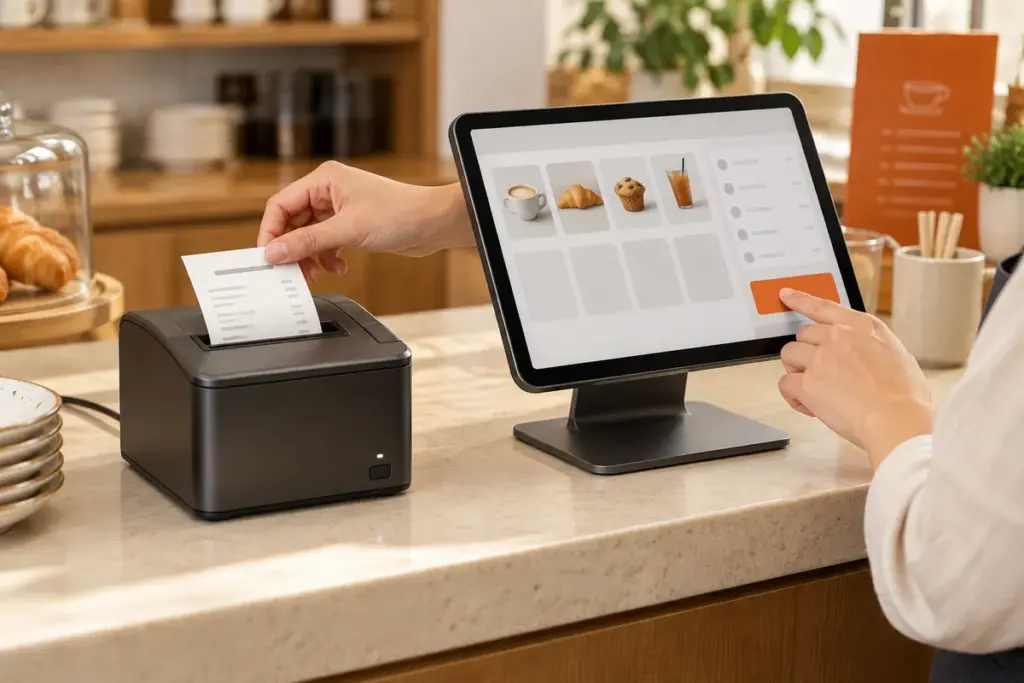
Illustrative tablet checkout scene; not a specific Uright model or customer installation. The image does not demonstrate compatibility with a particular POS app.
Connection Type Is Only One Part of POS Compatibility
Receipt printing involves the host device, software, connection, printer commands and receipt template. Confirm the entire path. A physical connection or successful pairing alone is not enough.
If your POS uses ESC/POS, check the particular commands it sends. Text, logos, barcodes, cutting, status reporting and cash-drawer control may require different functions. An ESC/POS listing is useful information, but it is not a promise that every feature in every POS package works without integration.
For network installations, confirm printer discovery or address entry, the communication method, and access between the terminal and printer. Guest-network isolation or other network restrictions can prevent communication even when both devices appear connected.
Before ordering multiple units, run a sample receipt through the intended device and software. Include the content you will actually use, such as item columns, your logo, barcodes and the required characters. Check output, cutting and recovery after a restart. This gives you a more useful answer than comparing connection labels alone.
Uright Receipt Printer Options
The Uright UR-3390 80mm thermal receipt printer is the main starting point in this guide. Its listed interface configurations are USB, USB with Ethernet (LAN), and USB with Bluetooth. Select the required version before ordering; these options do not mean that every unit includes all three interfaces.
The UR-3390 specifies 220 mm/s printing, 203 dpi resolution and an automatic cutter. These are printer specifications, not performance guarantees for a particular connection or POS application. Review the complete product page for paper, power and installation requirements.
| Model | Paper format | Listed connection options | Selection focus |
|---|---|---|---|
| UR-3390 | 80mm receipt printer | USB / USB + Ethernet (LAN) / USB + Bluetooth; confirm the selected version | Wider receipt layouts and automatic cutting |
| UR-2890A | 58mm receipt printer | USB / Bluetooth; confirm configuration | Compact counter layouts and manual receipt tearing |
| UR-2890U | 58mm receipt printer | USB / Bluetooth; configuration-dependent | Narrow receipt layouts and manual receipt tearing |
For the smaller format, compare the UR-2890A and UR-2890U. If paper size is still undecided, read our 58mm vs 80mm receipt printer guide before selecting the interface.
What to Send Us Before Ordering
Share these details so we can recommend the appropriate configuration:
- Your POS software name and version, plus the device and operating system.
- The required connection: USB, wired Ethernet or Bluetooth.
- Whether one terminal or several terminals need to send print jobs.
- Printer location, available network cabling and the counter layout.
- A sample receipt showing the paper format, language, logo and barcodes.
- Required cutter or cash-drawer functions, and your order quantity.
Email [email protected] or contact Uright Tech on WhatsApp with those details. We can discuss the interface configuration and the available integration support for your setup.
Frequently Asked Questions
Is Ethernet the Same as Wi-Fi?
No. Ethernet uses a wired network connection; Wi-Fi is wireless networking. A tablet on a suitable local Wi-Fi network may communicate with an Ethernet printer through the network, but the application and network settings must support that arrangement.
Will a Bluetooth Receipt Printer Work with Any iPad or Android App?
No. Confirm the exact printer version, operating system and app. A printer appearing in Bluetooth settings does not guarantee that the POS application can print to it.
Does a Bluetooth Desktop Printer Need a Battery?
Not necessarily. Bluetooth describes a data connection. Desktop printers may still require an external power adapter. Check battery and power specifications independently.
Can Multiple POS Terminals Use One Receipt Printer?
Some network-printing setups support this, but job routing and handling depend on the POS software and printer implementation. Confirm the proposed workflow; do not assume that a shared LAN or Bluetooth pairing provides it automatically.
Which Connection Gives the Fastest Printing?
There is no universal answer based on the interface name alone. Receipt content, software processing, communication and the printer’s mechanics all affect the result. Compare the complete workflow using a representative receipt.
Does the UR-3390 Include USB, Ethernet and Bluetooth Together?
The listed configurations are USB, USB with Ethernet, or USB with Bluetooth. Confirm the required version and its included interfaces before ordering.