
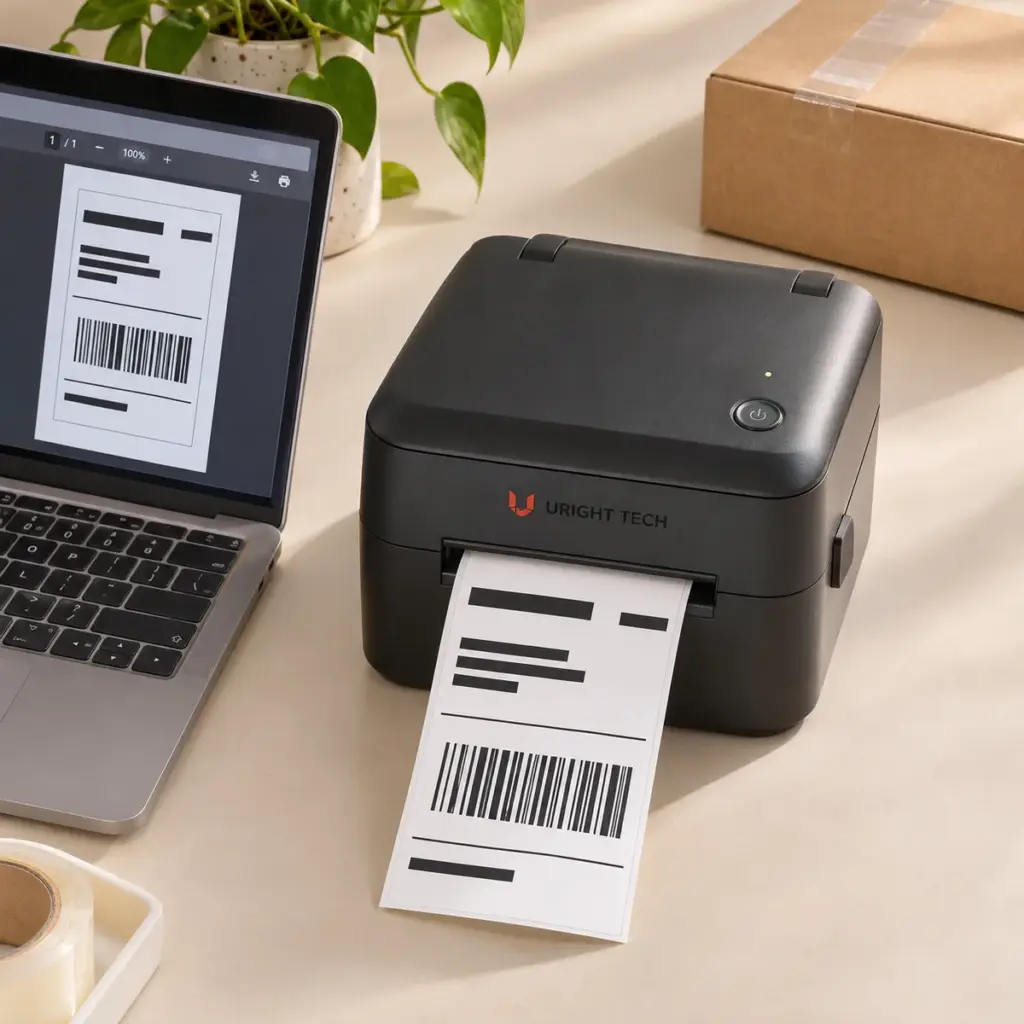
To print a 4×6 PDF shipping label on a thermal printer, start with a PDF whose page is already 4 × 6 inches. Select 4 × 6 as the printer’s paper size, print at Actual size (100%), and check the preview. Print one label and scan its barcode before you send a batch.
If your shipping label appears in the corner of an A4 or US Letter page, download the 4×6 thermal version from your shipping platform first, if available. Changing the printer’s paper size alone does not change the PDF page.
Check the PDF Page Size First
Open the original PDF and check its page dimensions in the viewer’s document properties. A 4×6 page is 101.6 × 152.4 mm in portrait orientation. Some drivers display a nearby metric preset such as 100 × 150 mm, which is a different size. Choose the preset that matches your stock and verify the printable area in preview.
The label artwork and the PDF page can have different dimensions. A label that is 4 × 6 inches on an A4 page is still part of an A4 PDF. If you use Fit in this case, the viewer can shrink the entire page, leaving a much smaller barcode and address.
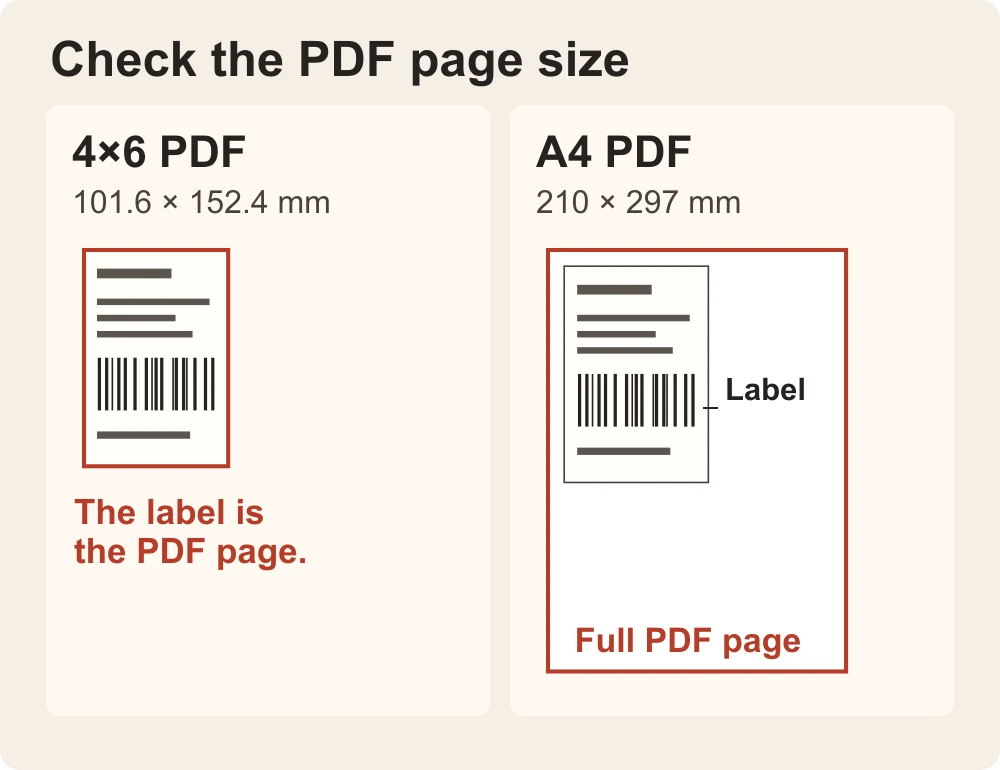
The printed label can look similar in both files. Check the size of the page around it.
If your platform only provides a full-sheet PDF, use its supported label-only print option if it offers one. If you need to print a selected area in a PDF viewer, check that the selection preserves the complete label, including the blank space around the barcode. Then verify the size and scan a test print. Keep the original file for reference.
Set the Printer Size and Print at 100%
- Select the thermal printer. Open the original PDF in a viewer that shows the paper size and scaling controls together, such as Acrobat Reader.
- Set the printer paper size to match the loaded stock. In the print dialog or printer preferences, choose the 4 × 6 inch preset or a supported custom size that matches your labels. Make sure the preview shows the correct feed orientation and one PDF page per label.
- Set the PDF scale to Actual size or 100%. For a native 4×6 PDF on matching stock, this preserves the original scale. If the job still previews at A4 or Letter, recheck the paper size in the selected printer’s preferences and any automatic paper selection setting.
- Print one label. Check the address, tracking number and barcode, including the clear space around it. Test the barcode with the scanner used in your workflow before printing more.
Adobe’s PDF scaling guide explains how the size controls work. Actual size retains the PDF scale, so content outside the available print area can still be clipped.
Fix a Label That Prints Too Small, Cut Off or Sideways
The label prints tiny in one corner. Check the original PDF page size again. If it is A4 or Letter, look for a native 4×6 export before changing printer settings. If it is already 4×6, check for Fit, multiple pages per sheet or extra scaling in the print dialog.
The barcode or address is cut off. Check the selected paper width, orientation and printable area. A printer can accept 4-inch media while printing across less than the full width. Check how close the content sits to the edges and use a supported layout that leaves the necessary margins and barcode clear space.
The label prints sideways. Compare the preview with the direction the stock feeds. Check the PDF viewer’s orientation, then the printer driver’s rotation. Change one setting at a time and reprint one label so you can see which setting affected the result.
The first label looks right, but the next one drifts or skips. Check that the driver has the correct label length, that the printer is set to detect the gap or mark used by your stock, and that it is calibrated for that stock.
Test Your Own PDF Before Choosing a Printer
If you are setting up a packing station, start with a sample from the shipping platform you actually use. Our 4-inch thermal shipping label printer guide covers the media and hardware side of that decision.
Send Uright Tech a sample PDF with private details removed, the shipping platform name, your operating system and your label stock dimensions. If a print is going wrong, include a photo of the output and a screenshot of the print preview. We can help check where the size or layout changes and discuss a suitable setup. Email us or message us on WhatsApp.