
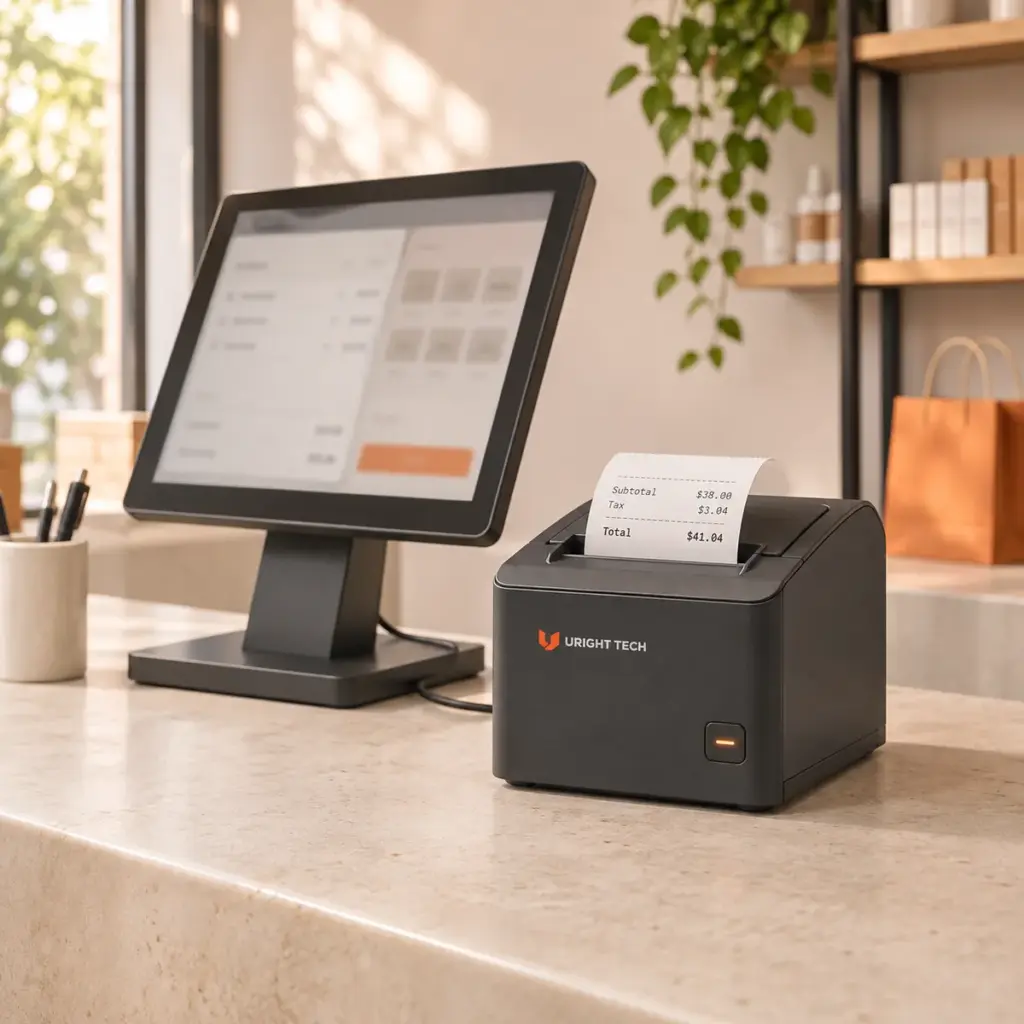
Your checkout software already handles products, prices and payments. If the receipt printer needs replacing, keeping that familiar software is usually the practical priority. Staff should be able to continue using the checkout process they already know.
Uright receipt printers support mainstream Epson ESC/POS printing workflows. For POS applications that print through a standard operating-system printer driver, installing the appropriate Uright driver and selecting the replacement printer allows the existing software to stay in use. Replacing the printer does not require replacing the POS application in that supported setup.
The important work is at the printing connection: the driver, selected printer, paper settings and receipt output. This article explains how those pieces fit together, with particular attention to preserving the receipt your business already uses.
Keep the POS Application, Update Its Printing Destination
Consider a shop replacing an existing receipt printer at one checkout. Its product database, pricing rules and sales screens remain in the POS application. The new printer needs to receive the receipt generated by that application and produce it in the required format.
For a standard driver-based installation, the change is to install the Uright driver for the selected printer and operating system, configure its connection, and choose that printer in the POS application’s printing settings. Paper format and relevant finishing settings are then set for the receipt. The staff’s sales workflow stays in the same software.
This is the distinction behind a direct replacement: changing the output device while keeping the business application. Selecting a new printer or updating its settings is part of installation; it is different from migrating the business to another POS system or rewriting its software.
Share the existing printer model and software name when asking about a replacement. Uright can use that information to recommend the printer configuration and the appropriate installation route, rather than asking you to identify the technical integration yourself.
What the Driver Does, and Where ESC/POS Fits
A printer driver sits between an application’s standard printing functions and the selected output device. In a driver-based POS setup, the application produces a print job through that route, and the driver prepares the output for the printer. Installing the correct driver lets the existing application use the replacement printer through its normal printing process.
ESC/POS is the receipt-printing command system introduced by Epson. Commands can describe operations such as text formatting, graphics, paper feeding and cutting. Uright’s receipt-printer firmware supports mainstream ESC/POS receipt-printing commands; this command compatibility and the appropriate driver support the replacement workflow.
The two concepts work together, but they describe different parts of printing. A driver handles the host-side printing route. The printer’s firmware interprets the commands it receives.
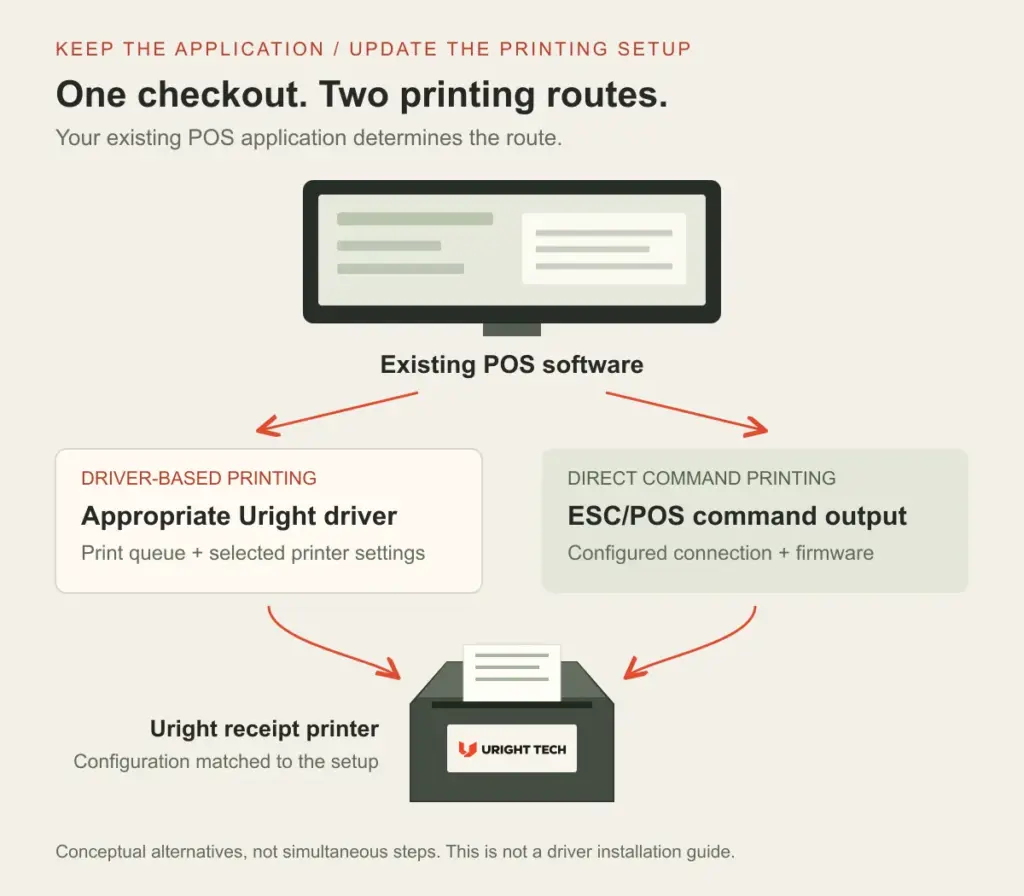
Conceptual printing routes. The existing application’s integration determines which route is used; this is not a software installation screen.
Some POS applications send ESC/POS commands directly rather than using an ordinary operating-system print queue. In that arrangement, the connection settings and the commands implemented by the printer provide the integration route. Tell us how the old printer is currently connected, or send its model and a settings photo, so we can help identify the appropriate Uright setup.
Epson’s official ESC/POS reference documents the command system. Named vendor SDKs, service objects and application-specific integrations should be identified as part of the existing setup, so the correct replacement route can be supplied. You do not need to translate your requirements into command names before contacting us.
Preserve the Receipt, Not Just the Printer Connection
The most useful reference for a replacement is often the receipt already used at the counter. It shows how the software’s output is meant to fit on paper: the shop logo, item descriptions, prices, totals and the space before the cut.
Printing the actual receipt after installation provides a practical confirmation of the setup. A generic operating-system test page verifies a narrower part of the process; it does not represent the layout generated by your POS application.
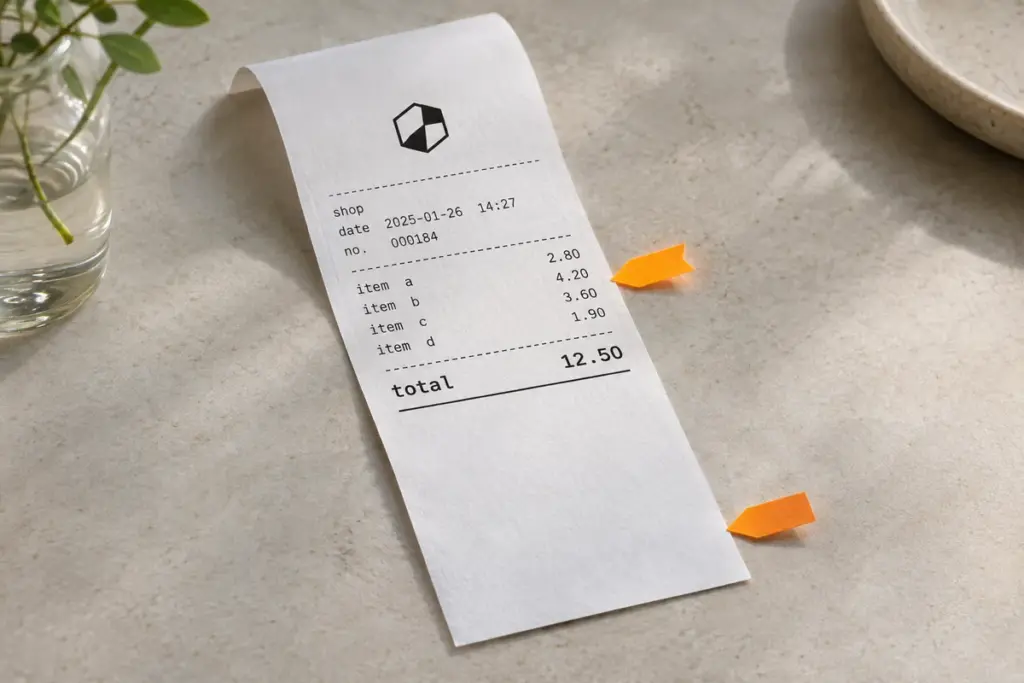
Illustrative layout sample. The highlighted areas are the amount column and bottom feed space; this is not a comparison between printer models.
Paper Format and Printable Area Are Different Settings
A POS template may be designed around a particular paper format and usable printing width. The selected driver paper size, application margins and printer’s printable area need to work together. Changing only the printer name can leave a previous paper-size setting in place.
For example, an item description and its price may share one line in the original receipt. If the application has less usable horizontal space after installation, a long description may wrap and push the following content down. That is a layout and setup question to review with the original sample; it does not automatically mean the POS software needs replacing.
Keep the actual receipt content in that comparison, including long item names and the largest totals normally printed. A short line of test text will not show how those parts of the template fit.
Text Columns and Printed Images Take Different Routes
Some applications position prices using printer fonts and text commands. Others render part or all of the receipt as an image. A shop logo may also be stored in the printer or included in each print job. The existing output method determines which settings matter during the changeover.
With text-based layouts, character size, spacing and the selected character table can affect the result. With image-based output, the prepared image width and scaling matter. The useful task is to retain the intended receipt layout through the correct driver or command configuration, rather than redesigning the checkout system around a new printer.
Send a receipt containing the language and symbols your business actually uses. Uright can discuss the relevant printing configuration with you. The customer does not need to work out character-table numbers or image commands in advance.
Complete the Changeover with the Normal Checkout Job
Once the replacement is installed, run the receipt from the POS application and follow it through to the end. Check the familiar item and total layout, relevant logo or barcode output, and the feed and cut position. Include any printer-status handling or peripheral functions that your checkout actually uses.
The aim is to preserve the business’s normal printing operation. A driver-based installation can involve changing the selected printer and its settings while leaving the POS application in place. For a directly controlled installation, the existing command and connection arrangement is the starting point for the configuration.
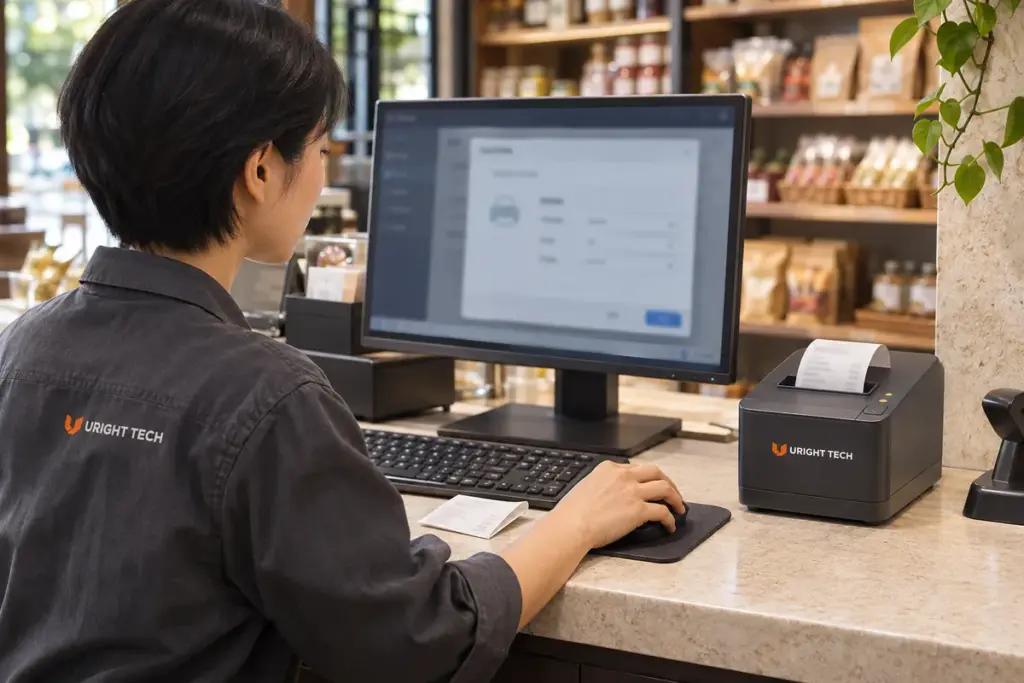
Editorial installation illustration, not a screenshot of a driver package or a reported software compatibility test.
For an 80mm receipt-printer replacement, the Uright UR-3390 is one option to discuss. Its product page lists ESC/POS command support and available interface configurations. Send the existing setup so we can recommend the required version and driver. If the connection itself is also changing, our receipt-printer connection guide explains the role of USB, Ethernet and Bluetooth.
Tell Us What You Want to Keep
Start with the POS software name, operating system, old printer model and one representative receipt. A photo of the current printing settings is useful if available. Explain that the existing software needs to stay, and tell us the preferred connection and required quantity.
Uright can help match the receipt printer, driver and configuration to the existing printing workflow. For supported driver-based POS applications, the objective is straightforward: install the appropriate driver, select the Uright printer and continue using the software your team already knows.
Contact us by email or WhatsApp with the information you already have.